TL;DR
- Build Aircall inbound workflows in Smartflows, starting with a clear one-page call journey before setup.
- Use Time Rules, IVR, and Waiting Experience to route callers by business hours, intent, and queue status.
- Give agents context before they answer with Insight Cards connected to clean CRM data.
- Use After-Call Work to capture tags and notes that trigger CRM follow-ups and automations.
- Keep the system simple: short IVR menus, automatic missed-call tickets, standard tags, and daily missed-call review.
The call routing technically works, calls reach agents, and yet customers hang up in menus, agents fumble for context, and follow-ups slip through the cracks under real volume. Most inbound call setups fail in the same quiet way.
The problem is rarely the tool. It is the gap between how the system was configured and how callers actually behave. Aircall gives you everything you need to close that gap, but only if you build the workflow deliberately rather than wiring widgets together and hoping.

This guide walks through the complete inbound journey, from the moment a call reaches your number to the moment it is resolved in your CRM. You will learn how to blueprint your call flow before opening the dashboard. You will also see how to configure Smartflows for business hours, intent-based routing, and missed-call follow-up.
Then, we will cover how to design a waiting experience that reduces abandonment and connect your CRM so every call gets the right next step. Each section builds on the one before it, just as a well-designed call flow does. By the end, you will have a workflow that your agents enjoy using and that your customers barely notice.
What Does a Complete Aircall Inbound Workflow Look Like?
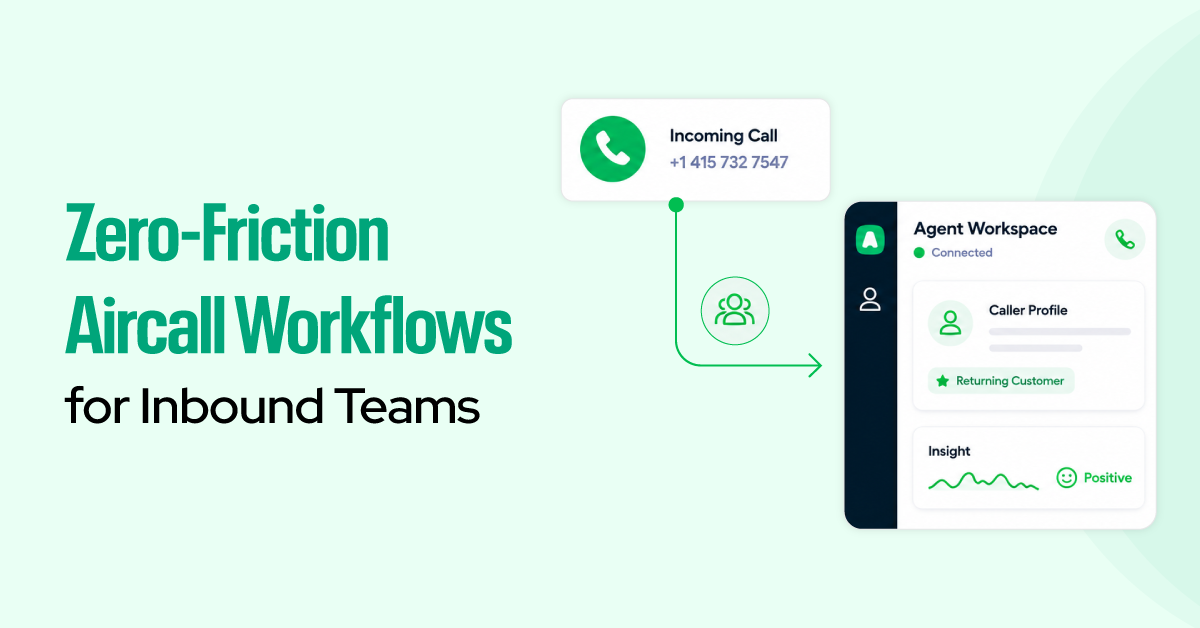
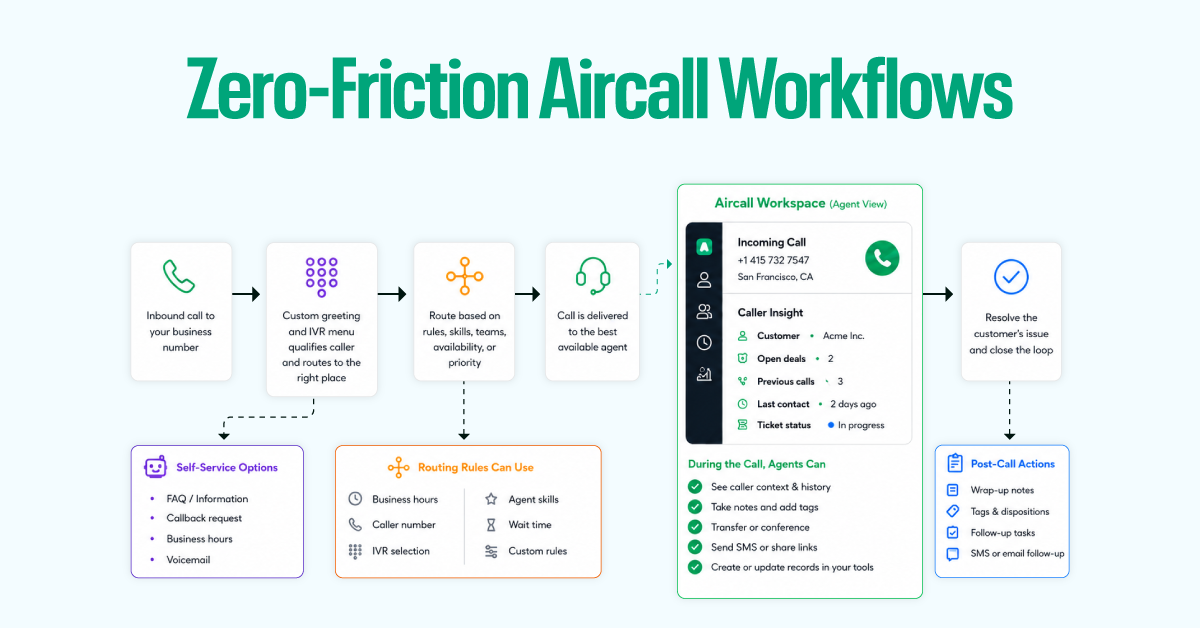
An Aircall inbound workflow is the full path a call takes from the moment it reaches your number to the point it is resolved in your CRM, with routing, queueing, agent context, and post-call actions configured at each stage. Every well-configured workflow follows the same five-stage logic:
- Call arrives. A Time Rule checks business hours and routes accordingly.
- IVR menu. The caller selects intent and branches to the right team.
- Queue and ring. The Waiting Experience manages hold, callbacks, and ring rules.
- Agent answers. Insight Cards surface CRM context before the first word.
- Post-call. After-Call Work triggers tagging, AI summarization, and CRM updates.
Build Your Zero-Friction Aircall Workflows in 5 Simple Steps
Each stage depends on the one before it. Here is how you can build a zero-friction Aircall workflow for your inbound team:
1. Build a Workflow Blueprint
Before you touch a single widget in Aircall, open a blank document and map your call journey on paper. This pre-configuration blueprint is the single step that separates a call flow that agents actually enjoy using from one that becomes a support ticket in itself.
How do I build a workflow blueprint?
Start by identifying every distinct caller intent. A typical SMB running sales and support on the same platform will have at least four:
- new sales inquiries,
- existing customer support,
- billing question, and
- everything else.
Write those down as destinations, then work backward. Find out answers to the following questions:
- What information does the caller need to provide to the system before it can direct them to the right place?
- What happens if every agent is busy?
- What happens at 9 PM on a Sunday?
- What happens on a public holiday?
The answers to those questions become the branches, fallbacks, and time conditions in your Smartflows canvas. Sketching it before you build prevents the most common mistake.
Keep the blueprint to one page. The goal is to get the right person on the phone in as few steps as possible. If your call flow requires more than a page, it is too complex for callers to navigate.
2. Configure Aircall Smartflows
Aircall’s Smartflows replaces the legacy routing system. All call routing now runs through the Smartflows canvas, where admins use widgets. These widgets are concrete actions such as Time Rules, IVR menus, Ring To groups, and Waiting Experience configurations.
Access Smartflows from the Numbers tab of the Aircall Dashboard. From there, you add configurable widgets onto a visual canvas and publish the flow without any downtime. Your existing call distribution stays active until you click Publish.
Setting Up Time Rules and Business Hours
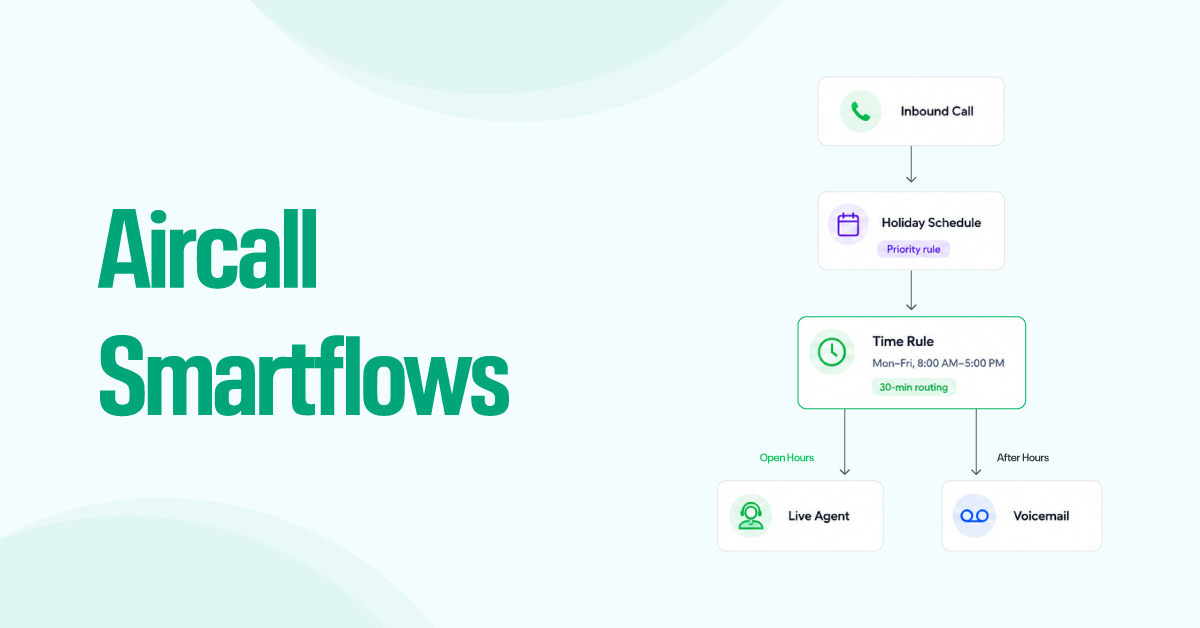
Use Time Rules to control when calls go to a live agent and when they follow an after-hours path. How to set up:
- Add a Time Rule widget to the number configuration.
- Define your team’s available hours, such as Monday to Friday, 8:00 AM to 5:00 PM.
- Route calls during open hours to live agents.
- Route calls outside business hours to voicemail, callback, or another after-hours flow.
- Use a single main time rule where possible to keep the setup easy to manage.
- Add a separate holiday rule above the standard business hours rule so holiday routing takes priority.
- Use 30-minute routing intervals when needed for lunch breaks, shift changes, or known coverage gaps.
Creating an Efficient IVR Menu
Most IVR menus fail callers because the people who built them thought like org chart designers rather than callers. The result is a five-option menu where option 3 has a sub-menu with four more options, and the caller has already abandoned option 2.
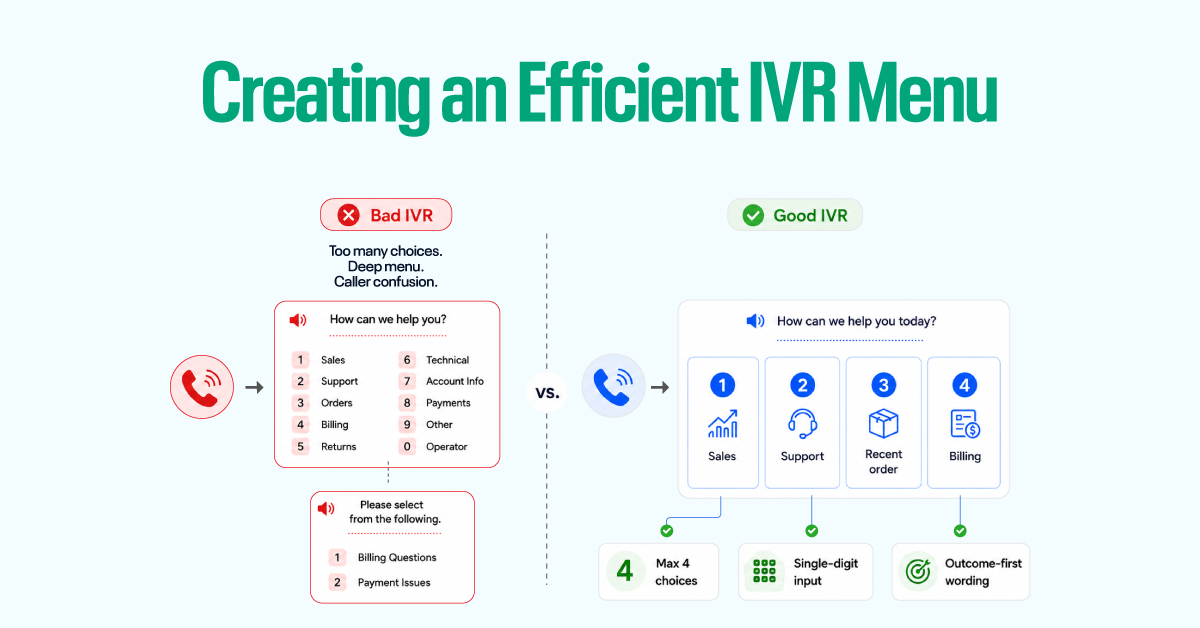
With Aircall’s Smartflows IVR widget, you can build multi-level menus that use single-digit keypad input at every level. A first level can separate Sales from Support; a second level can split Billing from Technical. You can type your greeting text, and Aircall will automatically generate the audio. You don’t need to record files or hire voice talent. Besides, MP3/WAV files and direct recording are also supported.
The four-option ceiling is not arbitrary. Research on IVR abandonment consistently shows that cognitive load increases sharply past four menu choices, and callers start pressing random digits or hanging up.
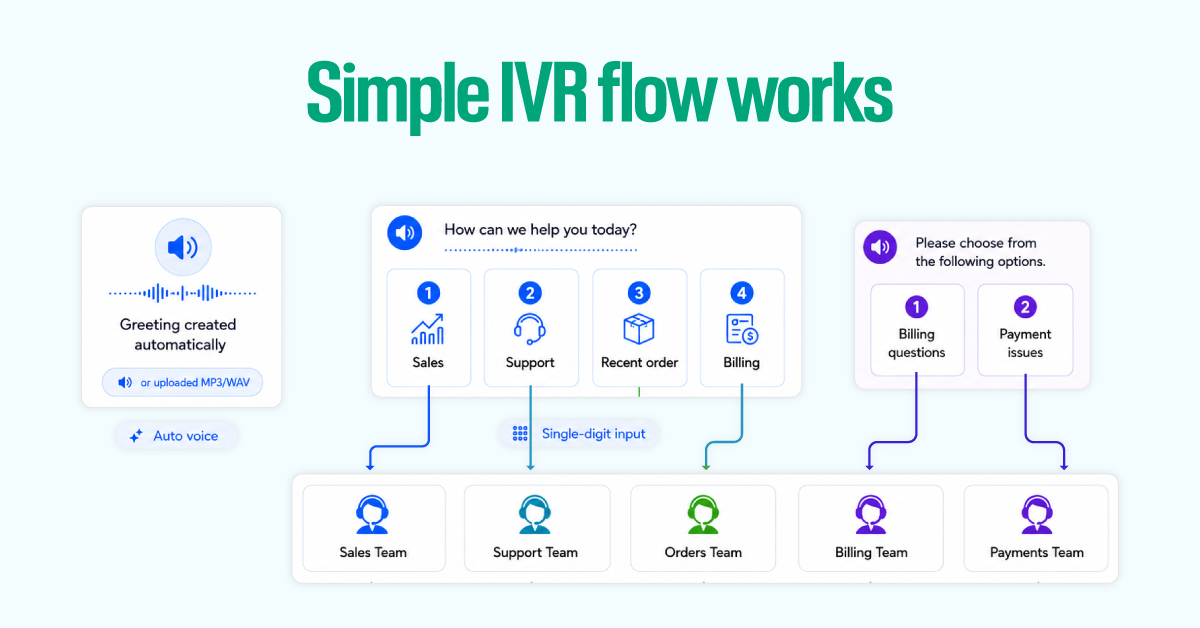
Each IVR branch should route to the appropriate team or agent via a Ring To widget. All branches must end in a voicemail or fallback widget to avoid dropped calls — every path must have an exit.
Designing the Waiting Experience
Use the Waiting Experience widget to reduce frustration for callers while they wait. Things you can provide in the waiting experience widgets are:
- Tell callers their queue position or expected wait time.
- Add a callback option so callers can request a callback instead of staying on hold.
- Use a custom hold music or brand audio file instead of the default tone.
- Keep the audio loop long enough to avoid repeated, distracting restarts.
Tips: Play queue updates every 60 seconds, such as “You are currently second in the queue.” Repeat the callback prompt after one or two queue updates to reduce abandoned calls.
3. Streamline the Agent Experience
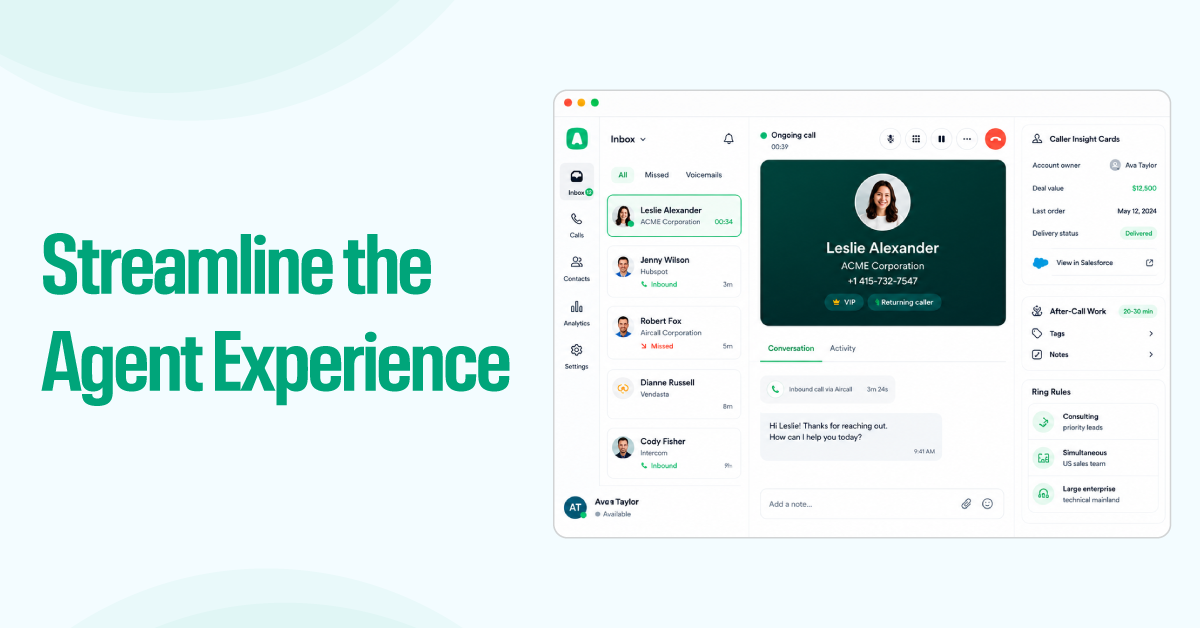
A strong call flow fails if agents lack context. If they spend the first 20 seconds searching tabs, checking caller details, or figuring out which number rang, the customer experience breaks down regardless of how well the routing was built.
After-Call Work (ACW) is a configurable post-call window that prevents agents from receiving the next call immediately, giving them time to tag, note, and close out the interaction cleanly before the next caller arrives.
Before launch, configure the Aircall desktop app at the team level, working through these steps in order:
- Configure Caller Insight Cards. They show key caller details as the phone rings: letting agents respond with context from the first word. Since Insight Cards depend on CRM data, audit common caller records first and ensure phone numbers are clean, complete, and correctly formatted.
- Enable After-Call Work for every agent. A mandatory 30–60 second window gives agents time to tag calls, add notes, and trigger the right CRM automations without rushing.
- Set ring rules based on team goals using the ring rule comparison above.
Ring rules determine how Aircall distributes calls to available agents. The right choice depends on your team’s goals, not a default setting.
| Ring Rule | How It Works | Best Used For |
| Cascading | Routes to agents in a defined priority order; the next agent only rings if the first does not answer | Sales teams handling high-value leads where a senior agent should answer first |
| Simultaneous | Rings all available agents at once; whoever picks up first takes the call | Support queues where speed of answer is the primary goal |
| Longest-idle | Routes to the agent who has been waiting the longest since their last call | Larger teams where workload balance matters, and no single agent should absorb most calls |
4. Integrate the CRM Handshake
Aircall connects natively to HubSpot, Salesforce, and Zendesk, among others.
- The HubSpot integration lets you customize the caller information displayed before a call begins and sync all call data directly into contact records.
- The Zendesk integration automatically creates tickets and matches incoming calls to existing customer records.
- The Salesforce integration enables calls to be made directly from within Salesforce with a single click.
Installation for all three is done from the Aircall integrations marketplace. It is a 1-click authorization process followed by field-mapping configuration.
| Feature | HubSpot | Zendesk | Salesforce |
| Pre-call caller info | Customizable Insight Cards | Matched to existing records | Pulled from Salesforce contact |
| Call logging | Auto-syncs to the contact record | Auto-creates ticket | Logged on activity timeline |
| Missed call action | Creates a ticket in the chosen pipeline | Creates a ticket with an SLA timer | Creates a task or case |
| Click-to-call | From the HubSpot contact view | From Zendesk ticket view | Directly within Salesforce |
The field mapping step is where most teams underinvest. Spend time here and decide which Aircall call fields map to which CRM fields. Build in the call recording link, call duration, call tags, and assigned agent as standard. When field mapping is done thoroughly at setup, every call becomes a clean data event in your CRM rather than a gap that someone has to fill manually later.
Automating Ticket Creation for Missed Calls
A missed call without an automatic follow-up is a broken promise. If it depends on an agent manually checking the missed-call list, it will fail under real-world call volumes.
With the Aircall CRM integration, missed calls should automatically create a ticket or task.
With Zendesk, calls can be logged as tickets with key details, tags, comments, and links to recordings. Zendesk can then apply priority rules and start SLA timers.
For HubSpot, Aircall can create tickets automatically. Choose the pipeline and ticket status, then log the missed-call data directly in the record.
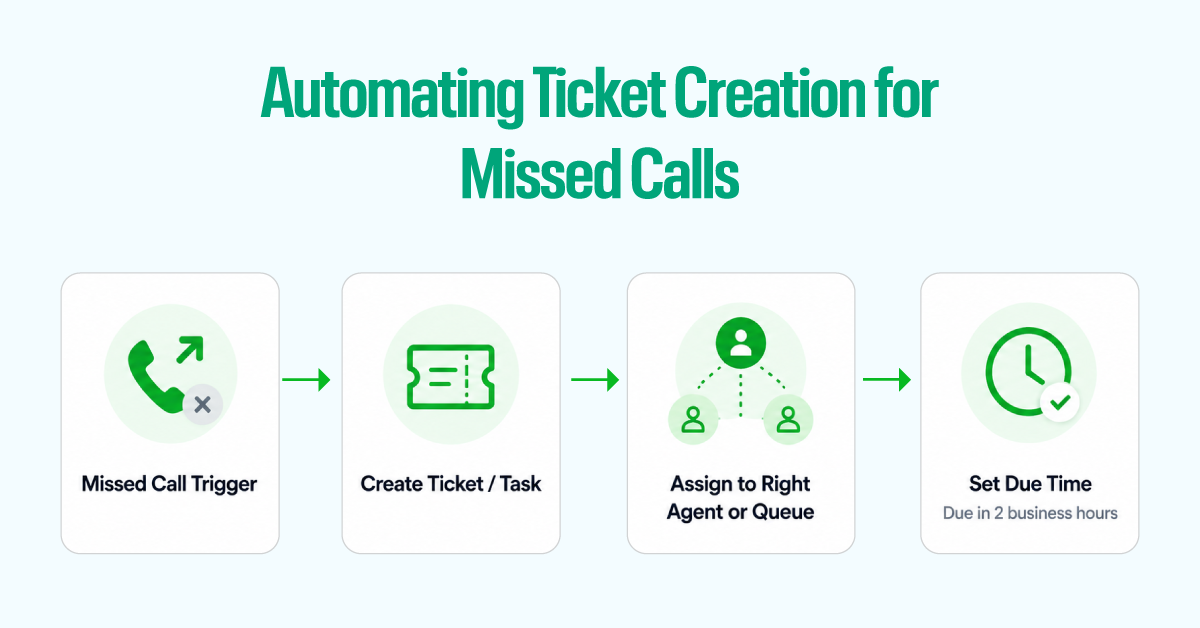
Build the missed-call workflow in this sequence:
- Missed call trigger fires
- A ticket or task is created automatically
- Assigned to the right agent or queue
- A two-business-hour due time is set
The customer has already tried once. The system should make sure someone calls back before that expectation turns into frustration.
Triggering Workflows from Call Tags
Call tags turn call outcomes into CRM actions. Without mandatory After-Call Work and a clear tag list, the connection breaks. If agents tag calls inconsistently, workflows fire on the wrong records, and pipeline data becomes unreliable.
In Zendesk, Aircall can sync call tags, comments, and recording links. Those tags can trigger Zendesk workflows.
In HubSpot, Aircall tags are logged on call activity and can support workflow automation based on call data.
The setup is simple. The tag is the input, while the CRM action is the output.
Recommended Call Tags for Sales & Support Teams
Standardize your tagging taxonomy before you go live and share it with the whole team. Ad hoc tags created by individual agents create an unusable patchwork in your CRM.
The following is a practical starting set; expand it to match your own products and processes, but resist the urge to create tags for every possible scenario.
Recommended tags for sales teams:
| Tag | When to Apply | CRM Action Triggered |
| qualified-lead | Prospect confirmed budget, authority, need, timeline | Move the deal to the Qualified stage |
| demo-requested | Prospect agreed to a product demo | Create a demo task, enroll in the pre-demo sequence |
| proposal-sent | Verbal agreement to receive a proposal | Move to the Proposal stage, set a 3-day follow-up |
| not-interested | Hard no from prospect | Mark the deal as Closed Lost, update the reason field |
| follow-up-required | Prospect is interested but not ready to commit | Create a follow-up task with a 5-business-day due date |
| voicemail-left | Call reached voicemail | Log outbound attempt, add to callback queue |
Recommended tags for support teams:
| Tag | When to Apply | CRM Action Triggered |
| resolved-first-call | Issue closed during the call | Close ticket, log FCR |
| escalated | Issue requires a specialist or a manager | Escalate ticket, notify team lead |
| bug-reported | Customer reported a product defect | Create bug report task, tag contact for follow-up |
| refund-requested | Customer asking for a refund | Create a high-priority task, notify the billing team |
| churn-risk | Customer expressed dissatisfaction or cancellation intent | Enroll in retention workflow, notify account manager |
| callback-scheduled | The agent promised a return call | Create a timed callback task |
5. Leverage Aircall Analytics+ and AI
Call volumes shift, team composition changes, and the IVR logic you built in January may be actively wrong by June. A workflow that is never reviewed degrades day-by-day. Analytics+ and Aircall’s AI features are what keep managers ahead of those changes.
Automating Notes with AI Assist
Manual call notes are the primary source of CRM data quality problems in phone-heavy teams. Agents write inconsistent details, use different terminology, and, under pressure, skip notes entirely. AI Assist removes that variability.
The base tier ($9/seat/month) delivers call summaries, full transcription, and topic detection. AI Assist Pro ($49/seat/month) adds real-time in-call coaching prompts, automated call scoring, sentiment analysis, and action item extraction. For most teams, start with the base tier. Get your agents comfortable reviewing AI summaries before layering in live prompts.
Enable CRM auto-updates from day one. Every minute an agent spends manually logging a call outcome is a minute not spent on the next one.
Monitoring SLAs and Missed Call Rates
The two metrics that indicate whether your workflow is functioning are SLA adherence and the missed-call rate. Everything else informs coaching, but these two tell you if the system is healthy.
Check three dashboards daily: Live Monitoring for real-time queue status, the Overview+ inbound tab for yesterday’s SLA compliance, and the Monitoring+ dashboard for seven-day trends. That 10-minute review cadence is enough to catch staffing gaps and routing issues before they become customer complaints.
Pay specific attention to the “missed calls not called back” metric inside Analytics+. If that number exceeds 5%, your ticket creation or callback automation has a gap that needs fixing.
Conclusion
A zero-friction Aircall workflow is not the result of a single clever setting. It is the cumulative result of decisions made in the right order:
- a one-page blueprint that forces clarity before configuration,
- time rules that handle the 9 PM Sunday and the public holiday,
- an IVR that speaks in outcomes rather than org-chart labels, and
- a CRM handshake that turns every call outcome into the correct downstream action.
The teams that get this right treat the workflow as a living system rather than a one-time project. They standardize tags before launch, automate missed-call follow-up so it never depends on memory, and spend 10 minutes a day monitoring SLA adherence and missed-call rates, so small gaps get fixed before they become complaints.
Start with the blueprint. Build one stage at a time. Review what the data tells you, and adjust the logic as your call volume and team change. Do that consistently, and the workflow stops being something agents work around and becomes the thing that quietly makes every inbound call easier.