Sales teams lose deals not because of a shortage of effort but because of how calls are handled after they end. Every time a rep manually logs a call, types up notes from memory, or tracks down the right person to hand off a lead to, momentum dies. Prospects go cold. Follow-ups slip. Pipeline numbers drift from reality.
Aircall solves this at the workflow level. It connects your phone system directly to your CRM, triggers automated actions based on call outcomes, and routes leads to the right rep before the prospect finishes explaining why they called.
In this guide, you will get five battle-tested Aircall workflows that sharpen lead routing, eliminate logging gaps, recover missed calls automatically, and keep post-call follow-up on track every time.
How workflow automation works inside Aircall
Aircall automation connects call events and AI-generated insights to predefined actions across your tech stack. The result: no manual data entry, no logging gaps, and no follow-ups that fall through because a rep got busy.

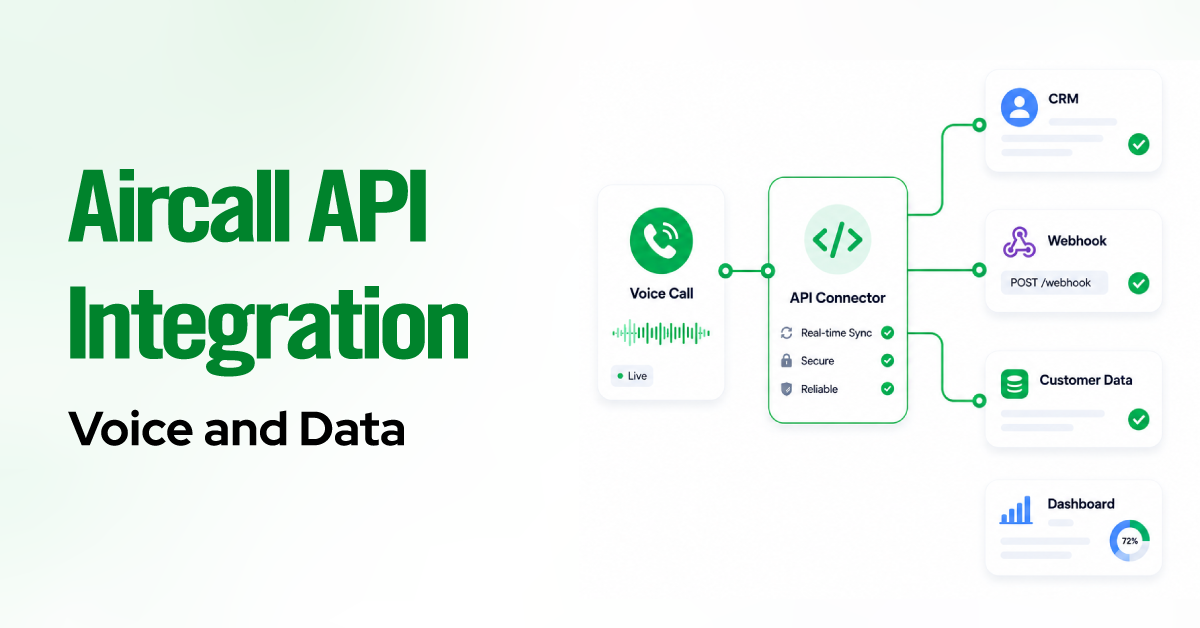
The entire process follows a straightforward framework: Trigger → Process → Action.
- Trigger: A specific communication event happens inside Aircall an inbound call connects, a call ends, a voicemail is left, or a rep adds a tag during a conversation.
- Process: Aircall’s AI layer transcribes the call, analyzes sentiment, summarizes conversation notes, and extracts key data points in real time.
- Action: The system executes tasks automatically logging CRM data, sending SMS messages, creating follow-up tasks, or escalating tickets without human intervention.
Understanding this framework before you build anything is the difference between automation that compounds and automation that creates noise.
Workflow #1: Intelligent Call Routing for Faster Lead Response
Every inbound lead that reaches voicemail because no one picked up is a lead that went somewhere else. Research from Harvard Business Review shows “The Short Life of Online Sales Leads” that firms contacting an inbound lead within one hour are nearly seven times more likely to qualify it than those who wait, and more than 60 times more likely than those who wait 24 hours or longer. Most sales teams still route calls manually which means reps are handling hot potato handoffs while the prospect loses patience.
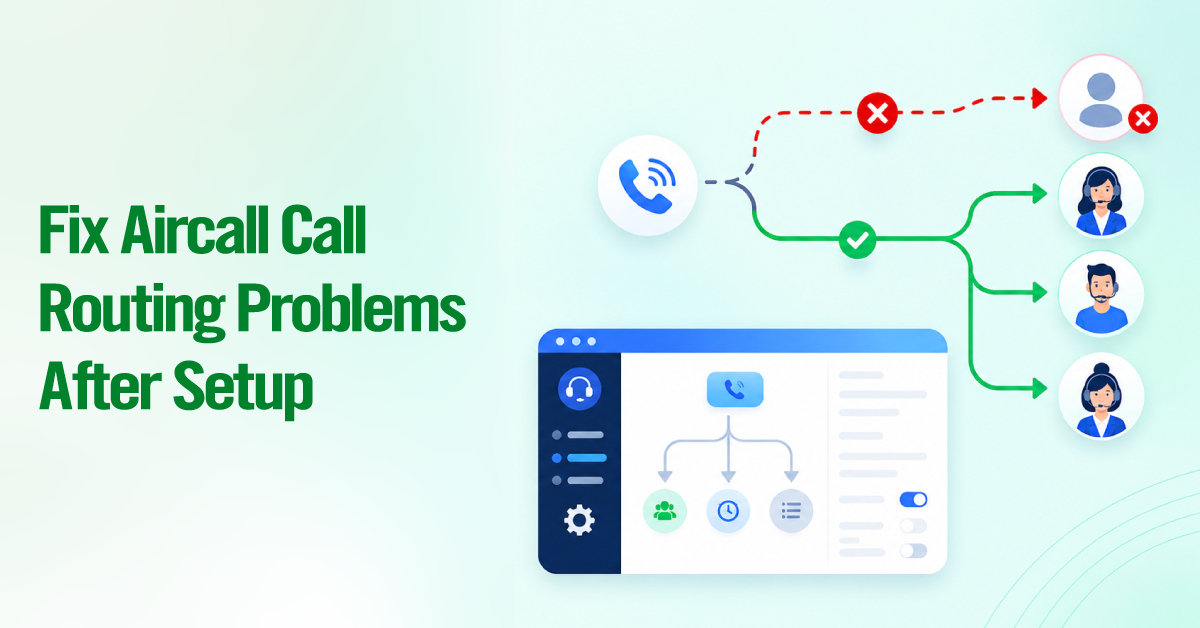
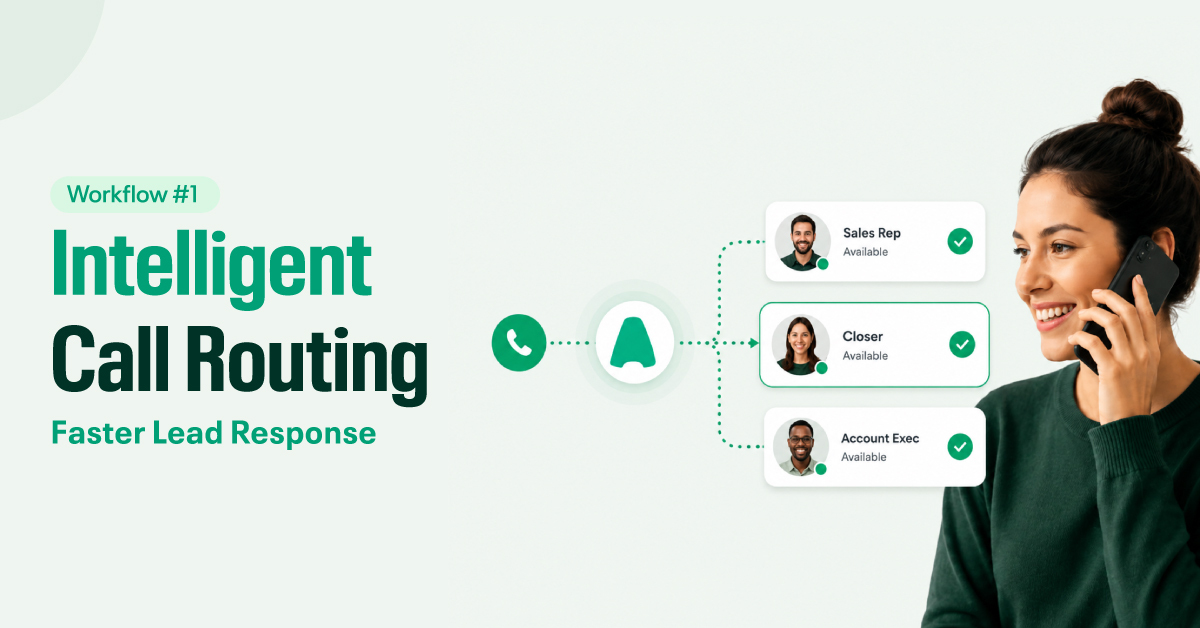
Aircall’s intelligent routing changes this entirely. Instead of calls landing on a shared line and waiting for someone to pick up, each inbound call is evaluated and routed based on logic you define: who is available, what the lead looks like, which territory they are in, and how they are categorized in your CRM.
How to Set This Up
Start with IVR (Interactive Voice Response) so callers direct themselves, then layer in round-robin or skill-based routing to match each caller with the best available rep based on territory, product expertise, or lead score. Flag VIP leads as high priority so key accounts skip the queue instead of waiting behind cold inbound traffic.
For sales territory routing, connect Aircall to your CRM — HubSpot and Salesforce integrations let you pull routing rules directly from deal and contact records, so a hot lead automatically lands on a closer’s phone. The result is a system that distributes leads based on availability, territory, skill match, and lead value, with no manual adjustment needed from your ops team.
Workflow #2: Automatic Call Logging and CRM Sync

Ask any sales manager what their biggest data problem is, and the answer is almost always the same: their CRM is wrong. Not because the data does not exist because reps do not log it consistently.
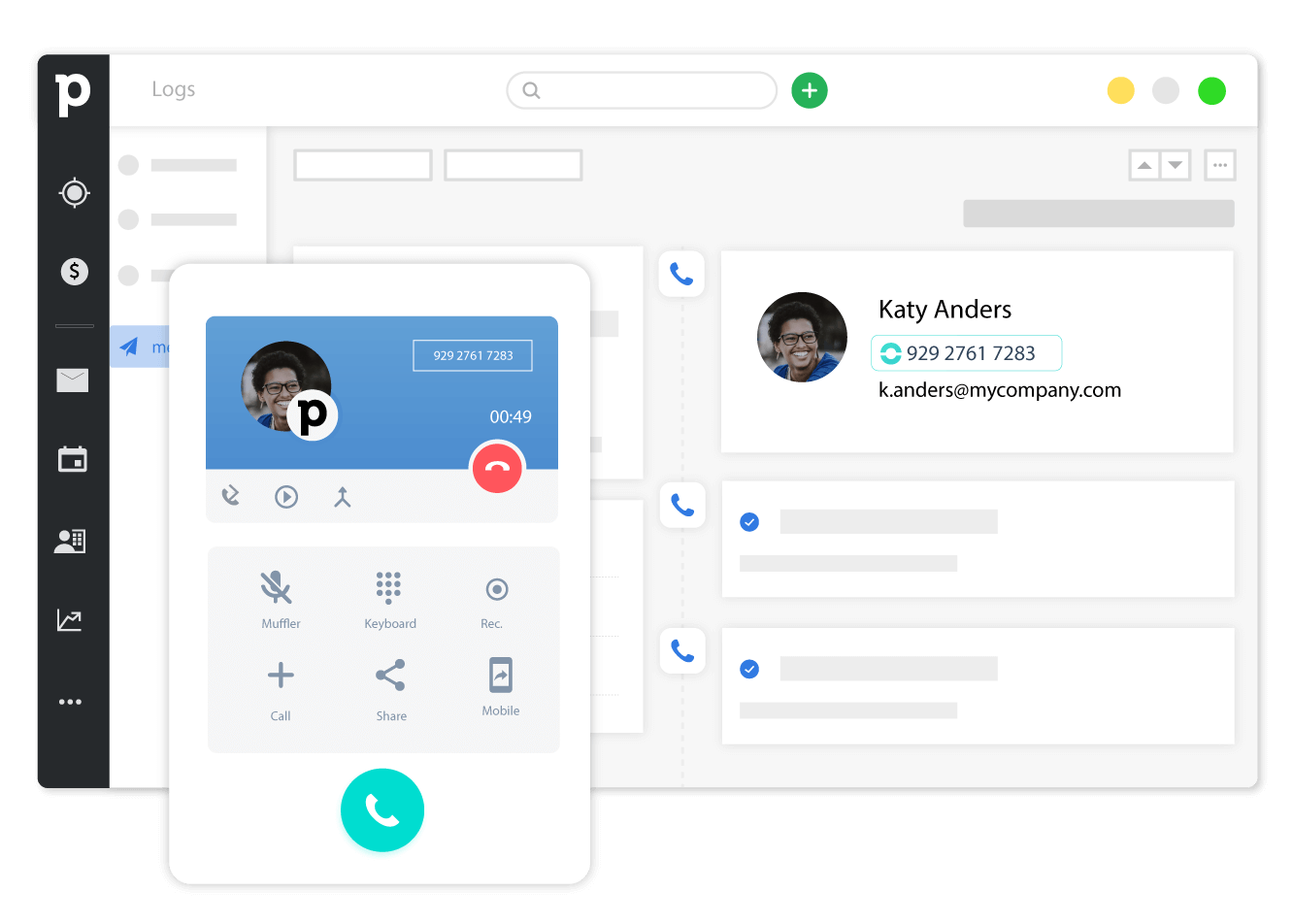
Manual call logging is the enemy of CRM accuracy and it drains rep time. Aircall fixes this by syncing every call directly to your CRM the moment it ends. Aircall pushes the activity record contact, rep, timestamp, duration, and call direction automatically. Call notes and tags push directly to the contact or deal record. Recordings are attached so any rep can pick up context instantly. Contact sync prevents duplicate records when new contacts are created inside Aircall.
Whether you use HubSpot, Salesforce, or Pipedrive, this workflow runs in the background and handles the administrative work so your reps can focus on the next call.
Workflow #3: Automated Missed Call Follow-Up Sequences
A missed inbound call is not just a lost conversation. It is a lead that had enough purchase intent to pick up the phone, and your team let them hit voicemail. Most sales teams have no structured process for what happens next.
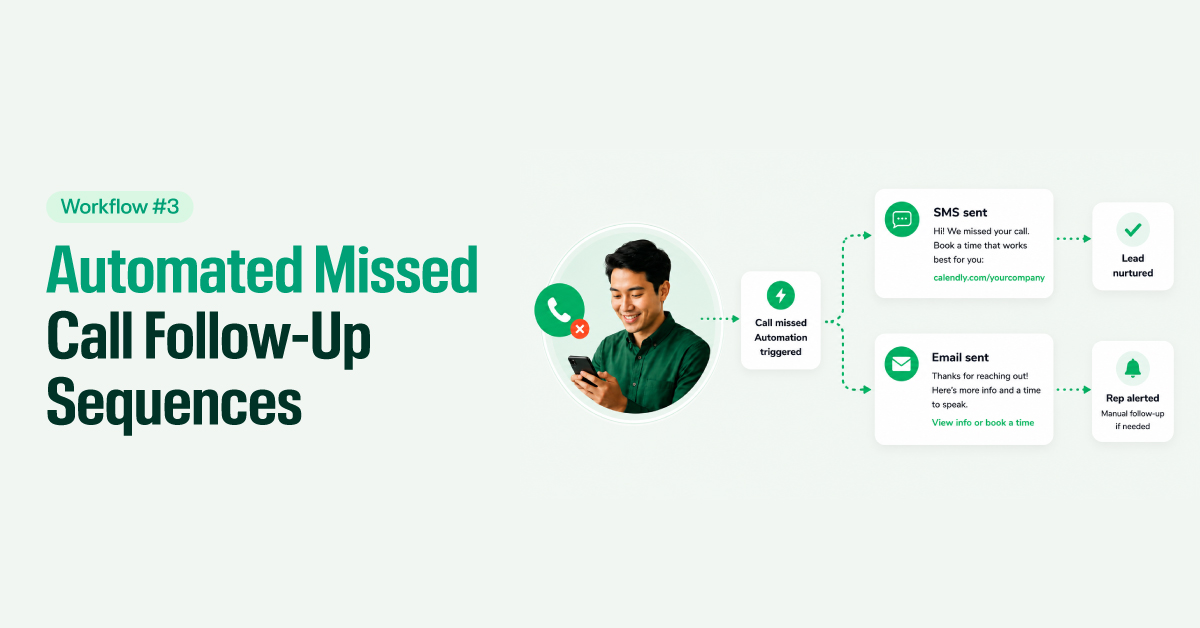
This workflow fixes that with trigger-based automation the moment a call goes unanswered. When a call drops without being answered, the system fires automatically: SMS automation sends a booking link within seconds, and email automation delivers a calendar invite or info sheet before a competitor even knows the lead called. That cuts response time from hours to seconds.
Reps no longer need to remember to follow up. The system does it and alerts them when a manual step is needed.
Workflow #4: Lead Qualification and Priority Tagging
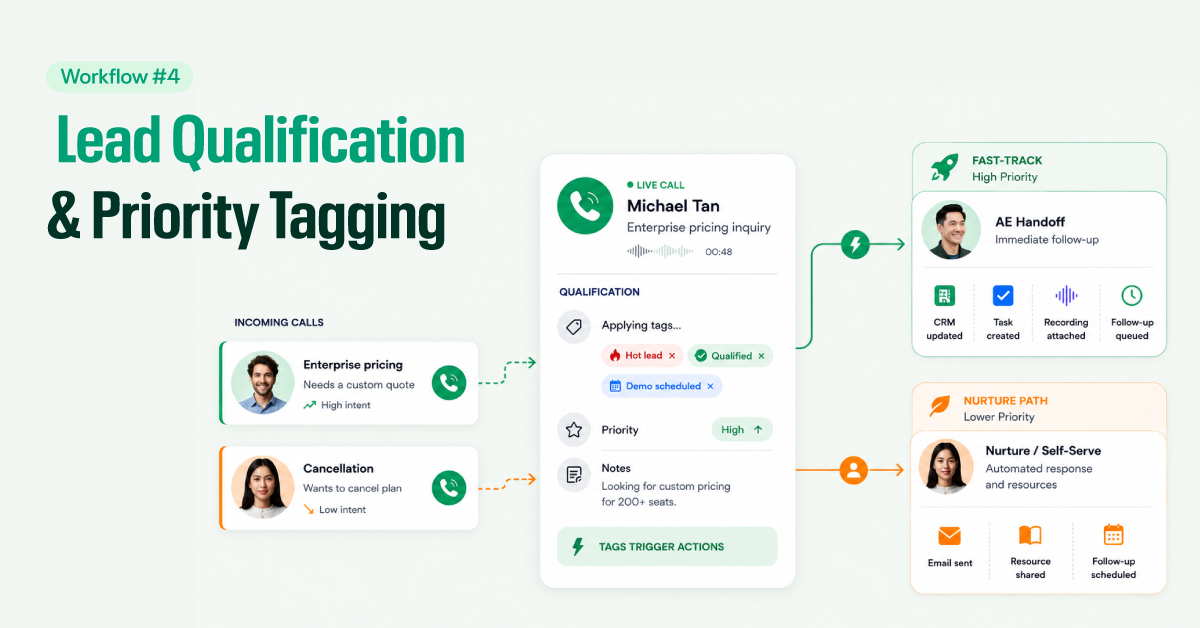
Not every call deserves equal attention. A prospect asking about enterprise pricing and a prospect calling to cancel are both inbound contacts but your team should respond to them very differently, and very quickly.
Lead qualification automation inside Aircall uses a tagging system that sorts leads in real time, so high-intent prospects get fast-tracked and unqualified contacts are routed to the appropriate nurture sequence.
During a call, reps apply tags “hot lead,” “demo scheduled,” “not qualified” that automatically update the CRM and set priority based on the tag value. A tag is not just a log entry; it is a trigger. Hot leads route to immediate follow-up tasks. Unqualified leads route to nurture sequences. SDR-to-AE handoffs happen automatically with tasks created and call recordings attached.
The system is straightforward, the more consistently reps use it, the more reliable every downstream automation becomes.
Workflow #5: Post-Call Automation for Sales Follow-Ups
Most deals do not die on the call. They die in the silence after it.
A prospect is interesting. Your rep promised to send a proposal by Thursday and schedule a follow-up call for next week. Then four more calls happened, a deal in another territory needed attention, and Thursday came and went. That silence is where deals are lost.
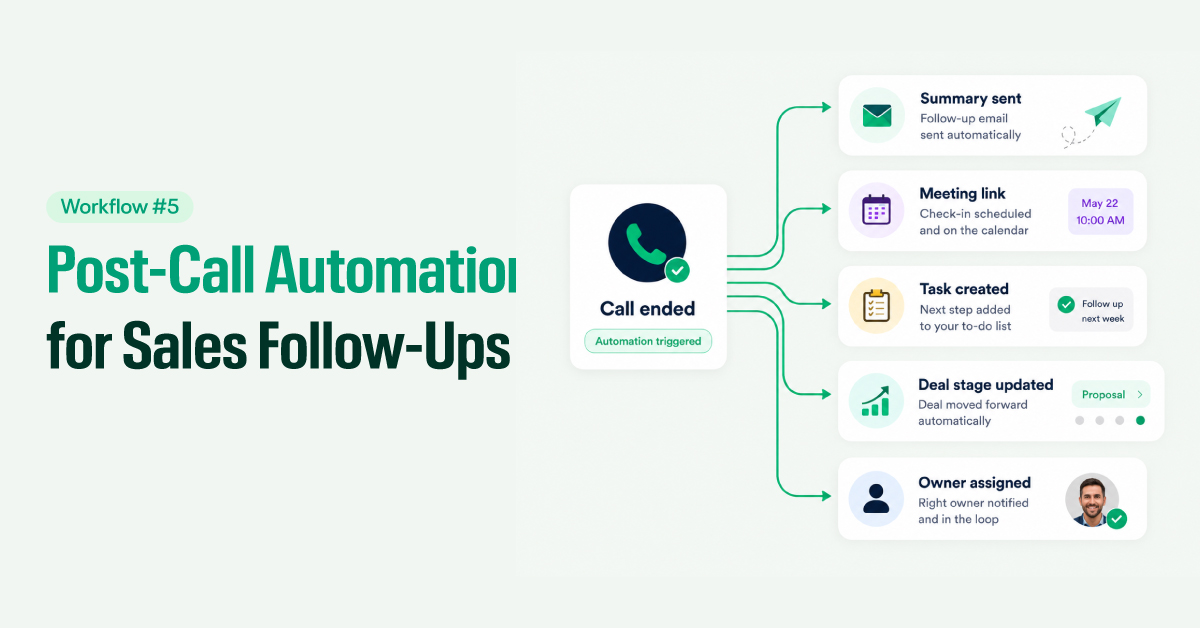
Post-call automation removes the gap between a strong conversation and the next step actually happening. When a rep finishes a demo or proposal discussion, workflows automatically create follow-up tasks, send a meeting summary, and schedule a check-in. Sales reminders stay active until the rep completes each step. Meeting scheduling links go out automatically. Deal stage updates happen without anyone manually dragging records through a pipeline.
The result is consistent follow-up on every call, no dropped balls, and a pipeline that reflects reality.
Common Aircall Workflow Automation Mistakes
After working with sales teams across industries for over 10 years, we have seen smart teams undermine their automation results in the same ways. Not because automation does not work, but because a few avoidable mistakes kill the results before the system has a chance to prove itself.
- Over-automation: Build one workflow at a time. Too many triggers at once creates complexity that breaks on edge cases and confuses reps.
- Poor routing logic: Always set a fallback route. If your primary rep is unavailable and there is no backup, calls drop to a queue — and that queue needs an owner.
- Broken CRM sync: Mismatched field mappings corrupt your reporting silently. Audit tag names against CRM field values before going live.
- Missing follow-up workflows: Routing and logging without post-call automation means you have accurate data on deals nobody followed up on.
- Inaccurate tagging: Keep your tag list under 10 options. If reps do not know what a tag triggers, they will not use it consistently.
- No performance reporting: Monitor routing accuracy, task completion rates, and CRM sync health regularly. Broken automations do not announce themselves.
Final Thoughts
Manual call handling does not scale. As your team grows, the gaps compound — more missed calls, more logging errors, more follow-ups that slip, more deals that move sideways because nobody caught them in time.
The five workflows in this guide are designed to close those gaps systematically. Intelligent routing cuts first response time. Automatic logging restores CRM accuracy. Missed call automation recovers leads you were losing by default. Qualification tagging separates high-intent prospects from low-priority traffic. And post-call automation keeps deals moving after the conversation ends.
Implement them as a connected system, and your phone channel becomes a reliable, measurable part of your pipeline not a black box.