You just finished configuring a number, so you place a test call to make sure everything works. Instead of a clean ring, you get dead silence, a menu that never loads, or a jump straight to voicemail. That gap between what you configured and what actually happens is behind most Aircall call routing problems, and it rarely means the platform itself is broken.
In today’s guide, we will identify the behavior you’re seeing and work through the fix before you touch anything else in the flow. We’ll cover the Call Distribution tab, the widgets inside Smartflows, and the handful of settings that most often trip up a fresh setup or a recent migration.
TL;DR
- Most Aircall call routing problems trace back to a Smartflow setting, not a platform outage.
- Run the diagnostic checklist first. Publish status, business hours, timezone, and agent availability catch most issues in under a minute.
- Use the symptom table to jump straight to the section that matches what you’re seeing.
- If calls never reach Aircall, the problem usually sits with a forwarding carrier upstream, not with your flow.
- Nothing in Smartflows takes effect until you click Publish. A saved draft changes nothing for live callers.
The Evolution from Basic Ring Rules to Advanced Smartflows
Most Aircall numbers now route calls through Smartflows, a visual editor found under each number’s Call Distribution tab. If your account has been active for a while, some numbers may still be running on the older ring rules system and will need to be migrated before Smartflows options apply.
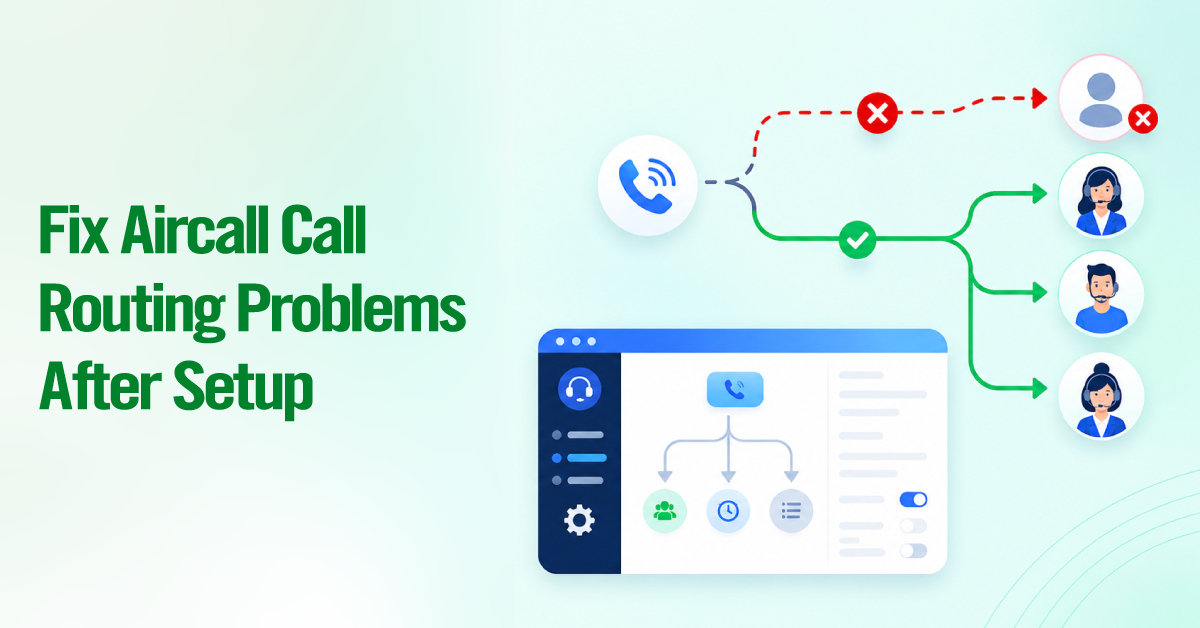
Inside Smartflows, a call moves through a chain of widgets such as Time Rule, Ring to, Voicemail, and IVR, until it reaches an agent or a fallback. Because the logic lives in this chain rather than in one master setting, a routing complaint usually means one widget needs a closer look, not that something is wrong with Aircall’s infrastructure. Start there before assuming the worst.

Fast Diagnostic Checklist
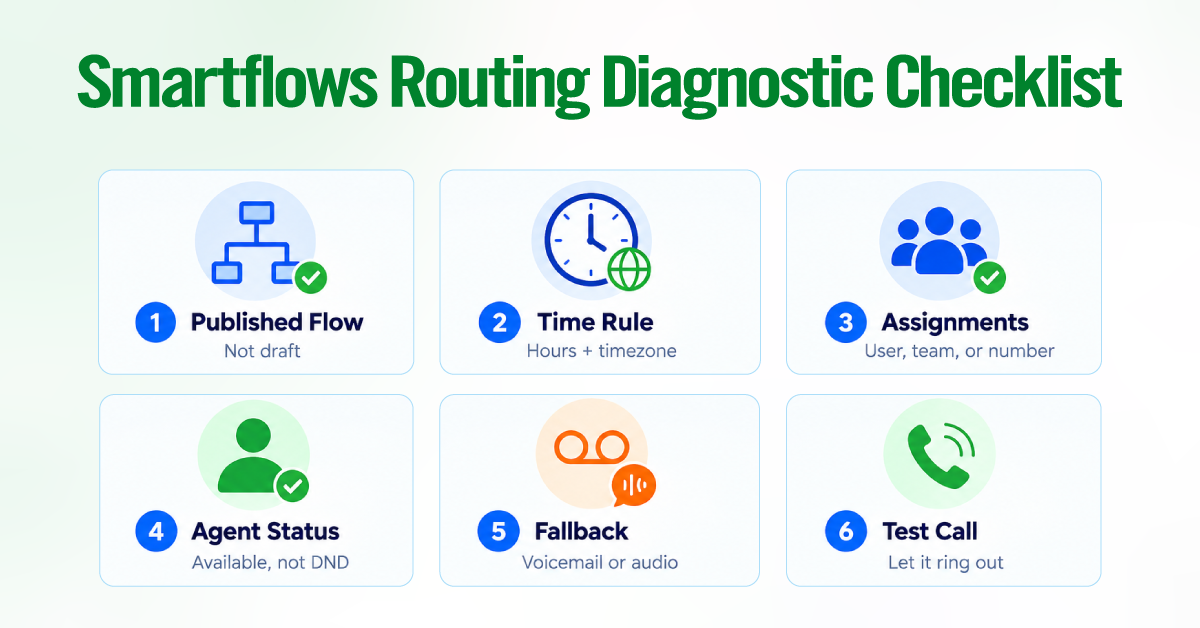
Before you rebuild anything, rule out the handful of mistakes behind most routing complaints.
- Open the number’s Call Distribution tab. Confirm the flow shows as published, not saved as a draft.
- Check the Time Rule widget’s business hours and timezone against the exact time the call came in.
- Confirm at least one user, team, or number is actually assigned somewhere in the flow.
- Check that the relevant agents show an Available status, not Unavailable or Do Not Disturb.
- Confirm a Voicemail or Audio Message widget exists as a fallback if nobody answers.
A saved draft in Smartflows has no effect on live callers until you click Publish. If you’ve made changes and calls still behave the old way, check that first.
Once you’ve gone through the list, place a test call and let it ring out without answering. Watching exactly where it lands tells you more than reading the flow ever will.
Match Your Symptom to the Likely Cause
| Symptom | Likely cause |
| Calls drop instantly with no message | Ring to widget set to skip if busy with no fallback behind it |
| Calls go straight to voicemail | Business hours or timezone mismatch in the Time Rule widget |
| No inbound calls are reaching Aircall | A forwarding or carrier issue upstream of Aircall |
| Agent can dial out but never receives calls | User is on Call and data access instead of Call Distribution |
| Calls ring the wrong team or agent | Misassigned IVR branch or overlapping fallback steps |
| Audio or IVR menus fail to play | Corrupted or incompatible audio file |
| Routing looks correct, but calls still misbehave | App, browser, connection, or router issue |
1. Calls Drop Instantly with No Message
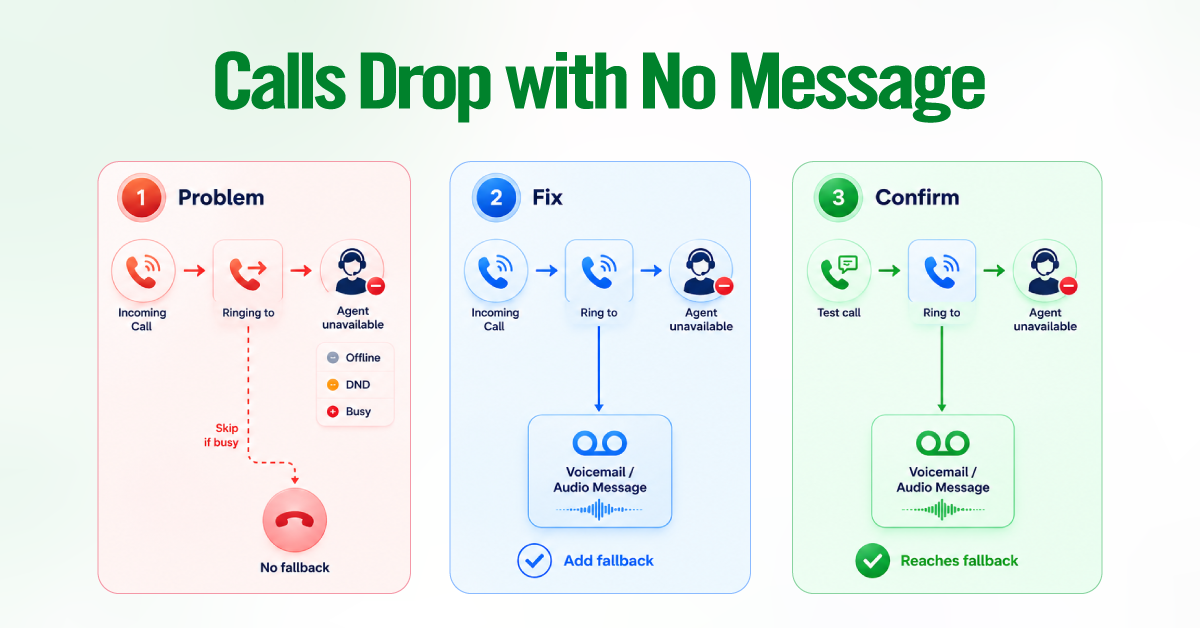
Start your investigation by confirming the destination agent’s current status. If the Ring to widget is configured to skip if busy and the user is toggled to Offline, Do Not Disturb, or is handling another dial, the call effectively hits a dead end. This combination causes most silent disconnects recorded after a new setup.
Skip if busy tells the Ring to widget to move past that agent as soon as they’re unavailable. If nothing follows that widget in the flow, the call has nowhere left to go and simply ends.
Add a Voicemail or Fallback Step to Catch the Call
Open the number’s Call Distribution tab and add a Voicemail or Audio Message widget directly after the Ring to widget. Every branch in a flow should end somewhere, and a fallback step gives an unanswered call a place to land instead of leaving it stranded.
2. Calls Go Straight to Voicemail
Start your investigation by narrowing down whether the issue happens for every call or only during specific hours. Does every call land on voicemail, or only the ones placed at certain times?
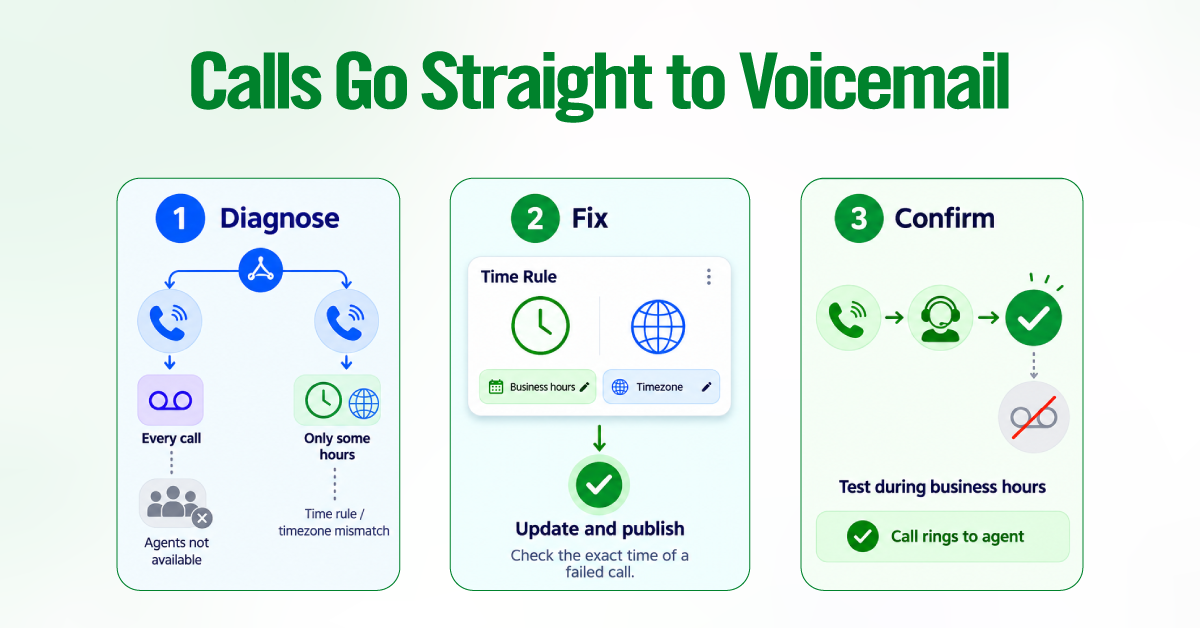
If every call goes to voicemail regardless of time, no agent assigned to the flow is likely marked Available, so the call falls through to the fallback step. If only some calls go to voicemail, the Time Rule widget’s hours or timezone probably don’t match when those calls come in. A flow can look correct on screen and still misroute if its timezone doesn’t match where your team works.
Correct Your Business Hours and Timezone
Open the number’s Call Distribution tab and select the Time Rule widget. Compare its hours and timezone with the exact time of a failed call, correct the mismatch, and publish. The default timezone is generally tied to the number’s country prefix, so check it manually rather than assuming it already matches your office. Test call inside the corrected business hours and confirm it rings through to an agent rather than falling to voicemail.
No Inbound Calls Are Reaching Aircall
Here’s where admins often get caught. Calls that never reach Aircall at all can look identical to a broken Smartflow, even when the flow itself is fine.
Does the direct Aircall number ring when you call it yourself?
- It rings normally. The problem is likely upstream, in the forwarding path or the carrier routing calls to that number. If a direct call connects but a forwarded call doesn’t, stop editing the Smartflow and investigate the forwarding path instead.
- It doesn’t ring at all. Check the number’s status, its call history, and whether the flow is actually published before assuming a carrier problem.
Isolate Carrier Forwarding and Escalate with 48-Hour Call Logs
If the fault is forwarding, collect specific examples of failed calls, including the caller’s number, the number dialed, and the exact time, all from the last 48 hours. Carriers routinely decline to investigate anything older, so gather your examples and open a ticket with Aircall support as soon as the pattern shows up.
Agents Can Dial Out but Never Get Calls
An agent who can place outbound calls without trouble often assumes their number is fully set up. That’s not always the case. An Available status only means the agent is reachable in the app. It doesn’t guarantee they’re part of that number’s inbound call distribution.
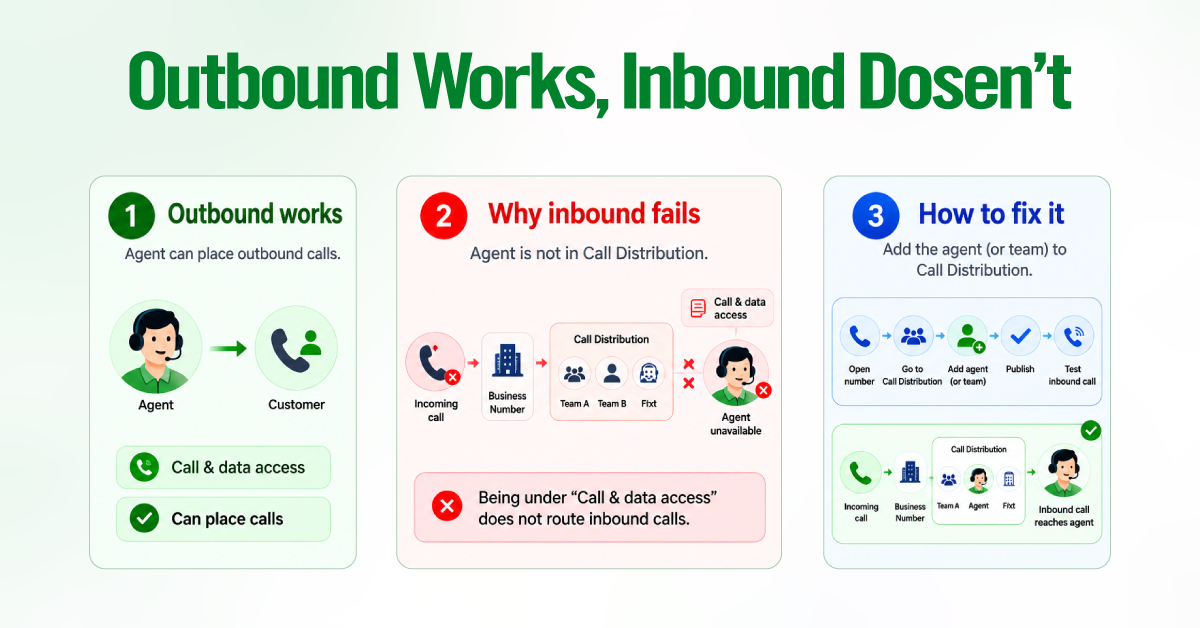
Open the number and look at the Call and data access list under Teams & Users. If the agent appears there instead of in the Call Distribution, that explains the gap. Call and data access grants outbound calling and visibility into call activity, but it deliberately excludes the user from inbound routing.
Move the User from “Call and Data Access” to Call Distribution
An admin needs to remove the user from Call and Data Access and add them to the number’s Call Distribution, either directly or through a team. Only an admin can make this change, so if you’re the affected agent, flag it to whoever manages your account. Publish the update and place a test call to the number. The agent should now ring alongside the rest of their team.
Calls Ring the Wrong Team, Wrong Agent, or Everyone
There are two places worth checking when calls land somewhere unexpected.
First, look at the IVR branches. A caller pressing 2 for support should ring the support team, not sales. If a user or team sits on the wrong branch, that mismatch alone can send calls to the wrong place even though the rest of the flow is correct.
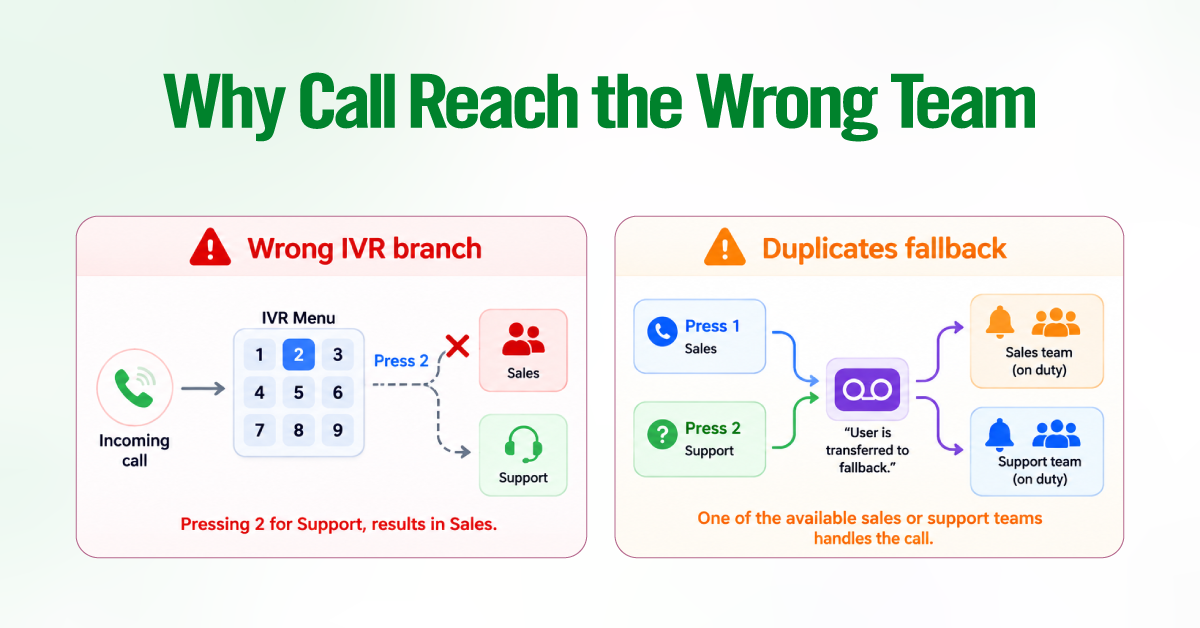
Second, look for overlapping voicemail or fallback steps. If a Voicemail widget is copied onto more than one branch, it can cause multiple teams to receive the same missed-call message, which looks like a routing bug but is really a duplication issue.
Reassign IVR Legs and Fix Queue Precedence
Audit each IVR branch and confirm the users or teams assigned there match your intended routing. If two teams need to keep their messages completely separate, give each one its own number rather than sharing branches on a single flow.
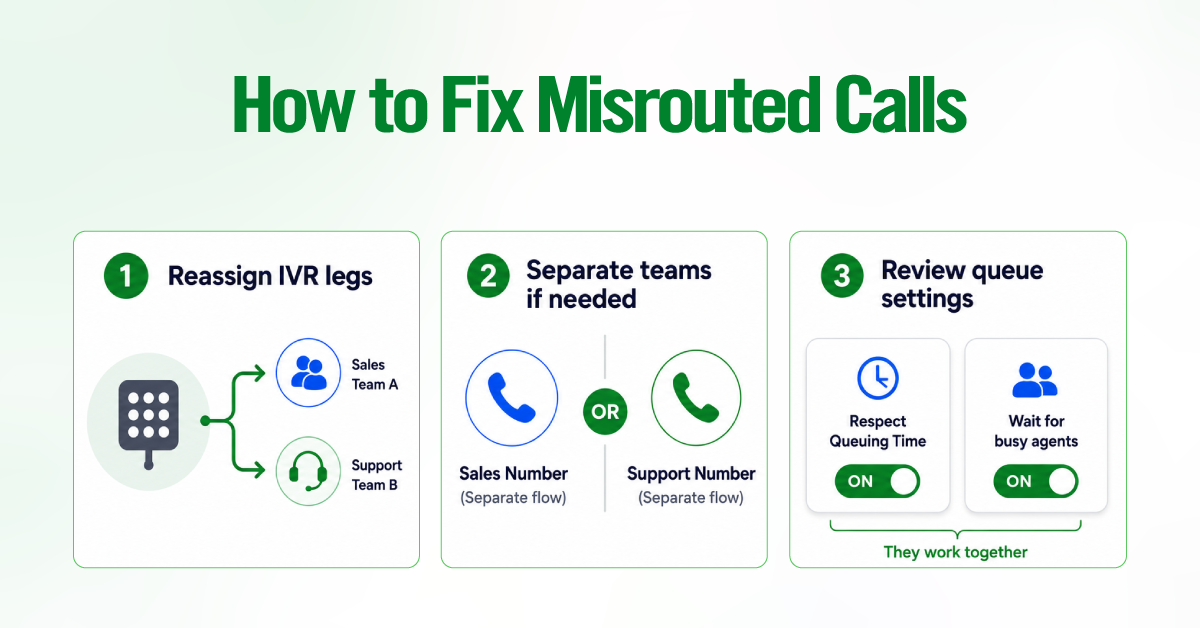
Queue precedence trips people up here too. As covered in the comparison table earlier, Respect Queuing Time governs Offline and Unavailable agents, while the Wait for busy agents toggle governs Busy agents. The two work together rather than replacing each other, so changing one won’t fix a problem caused by the other.
Audio Messages or IVR Menus Fail to Play
Play the message yourself before assuming a caller’s phone is at fault. If a greeting or menu doesn’t play, or the call drops mid-message, the file behind it is usually the issue.
Corrupted or incompatible audio files are the typical culprit. One documented compatibility risk involves recordings made on a Mac. Apple’s software can embed metadata that Aircall’s system doesn’t reliably read, so a file that sounds fine on your laptop can still fail for every caller.
Re-Upload a Compatible Audio File
Re-upload a properly formatted mp3 file under 10 MB. If you recorded the original on macOS or iOS, convert or compress it first with a tool like Audacity to strip incompatible metadata. Republish the flow and test every option in the menu, not just the first branch, since one bad file can affect more than one path.
Network and App Issues Worth Ruling Out
Sometimes the flow is configured correctly and calls still misbehave. That’s usually a sign to look outside Smartflows entirely.
Is the issue affecting one agent or everyone on the number?
- One agent. Check their app version, their browser if they’re using the web Workspace, and their connection. Update the app, switch to Chrome, and move to a wired connection where possible.
- Everyone on the number. Ask whoever manages the office network to check for SIP ALG on the router. This feature is meant to help VoIP traffic but often interferes with it instead.
Aircall needs at least 100 Kbps of upstream and downstream bandwidth for each concurrent call, on top of whatever else your team’s software is using, so a connection that feels fine for browsing can still be too thin once several agents are on calls at once.
How to Set Up Routing So It Just Works
Routing just works when the setup matches its complexity. Aircall’s free Smartflows templates handle a single number and a single team well, so most small accounts never need more than the checklist and fixes covered above.
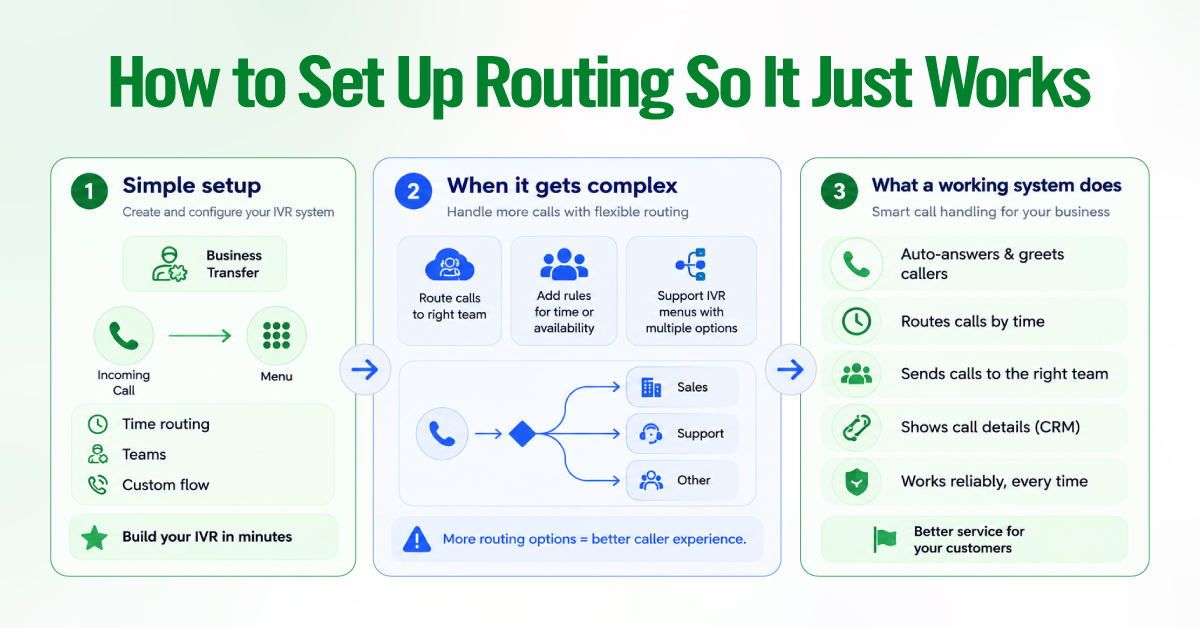
The line gets harder to hold once routing needs to account for CRM data sync on every call, multi-team routing with shared overflow, or an IVR with several layered branches feeding different queues.
A routing consultant who specializes in Aircall setups typically audits the existing Smartflow, maps business hours and overflow rules across every number, configures skills-based and team routing so each call reaches the right queue, wires in the CRM sync so screen pops and logging fire correctly, and stress tests every branch before the new flow goes live.
Final Thought
Most of the routing problems covered here trace back to a setting rather than a platform fault, and the checklist near the top catches many of them in minutes. Work through your symptom, confirm the cause before you fix it, and publish before assuming anything is broken. If your setup has outgrown what a template can handle, the option above is worth a look before your next migration.