TL;DR
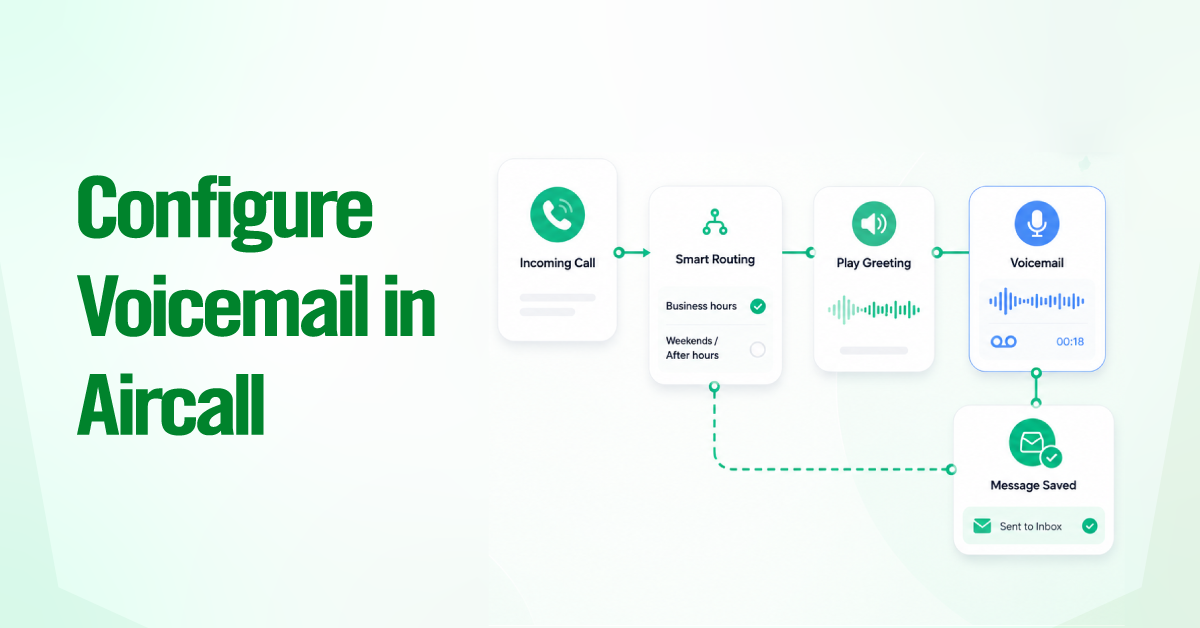
- In the current Smartflows editor, voicemail is a widget you drop onto a branch, not the simple on/off toggle you may remember from Classic Numbers.
- The Voicemail widget is a terminal step. Once a caller finishes recording, the call ends, and any widget placed afterward is ignored.
- The path to reach it runs Aircall Dashboard > Numbers > your number > Call Distribution > Edit. You need Admin access.
- Two placements cover almost every need. An after-hours message sits on the closed branch of a Time rule. An unanswered-call message sits after a Ring to widget.
- Build the greeting with text-to-speech, an uploaded MP3, or an in-app recording, then choose a language and voice, and preview it before publishing.
- Set the maximum message duration to 3 minutes. Aircall cuts the call after 5 seconds of silence, so tell callers to start speaking right away.
- Voicemails reach every user linked to that number’s distribution, and email alerts are tied to the number rather than the individual, which explains most “everyone gets every voicemail” complaints.
If you opened the Smartflows editor expecting a voicemail checkbox and instead found a canvas full of widgets, you are not doing anything wrong. Aircall moved call routing into a visual, drag-and-drop builder, and voicemail became a widget you place deliberately rather than a setting you flip. Most guides still online describe the old message settings screen, which is why their steps never match what you see on your screen.
We work in this editor constantly, and the confusion almost always comes down to three things. Where the widget goes, the fact that it ends the flow, and why messages sometimes never reach anyone. Here, we are going to share our experience with the current widget panel field by field, showing the two placements that matter, and fixing the failure modes we see most often.
5 Simple Steps to Configure Voicemail in Aircall Smartflows
You can configure voicemail in Aircall Smartflows by using the 5 quick steps below in your call flow:
- Open the Call Distribution flow for the Aircall number you want to update.
- Choose the correct branch where callers should be directed to voicemail.
- Click the plus icon and add the Voicemail widget.
- Configure the greeting and message duration from the settings panel on the right.
- Publish the updated flow to activate the voicemail setup.
Because the Voicemail widget ends the call flow, place it at the end of a branch. It is commonly added after the closed branch of a Time Rule for after-hours calls or after a Ring To widget for unanswered calls.

Explore the detailed steps below to configure each voicemail setting correctly.
Step 1. Navigate to the Smartflow canvas
Open the Call Distribution flow in Aircall, which opens the canvas where all call routing decisions for that number are stored. And follow the navigation.
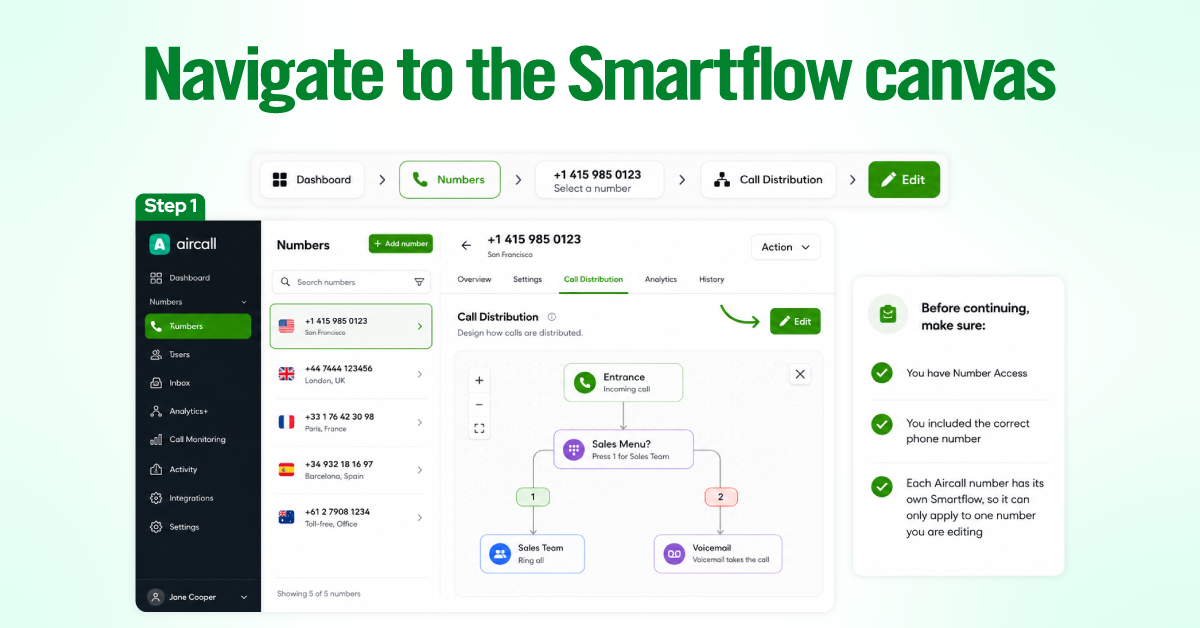
Dashboard > Numbers > select a number > Call Distribution > Edit.
Before continuing, make sure:
Each Aircall number has its own Smartflow, so changes only apply to the number you are editing. |
The canvas starts with the Call comes in step. From there, you can add and connect widgets to control how incoming calls are handled.
Step 2: Add the Voicemail Widget
Hover over the point in the flow where callers should reach voicemail. Click the plus (+) icon, select Voicemail, and then click the new widget to open its settings panel.
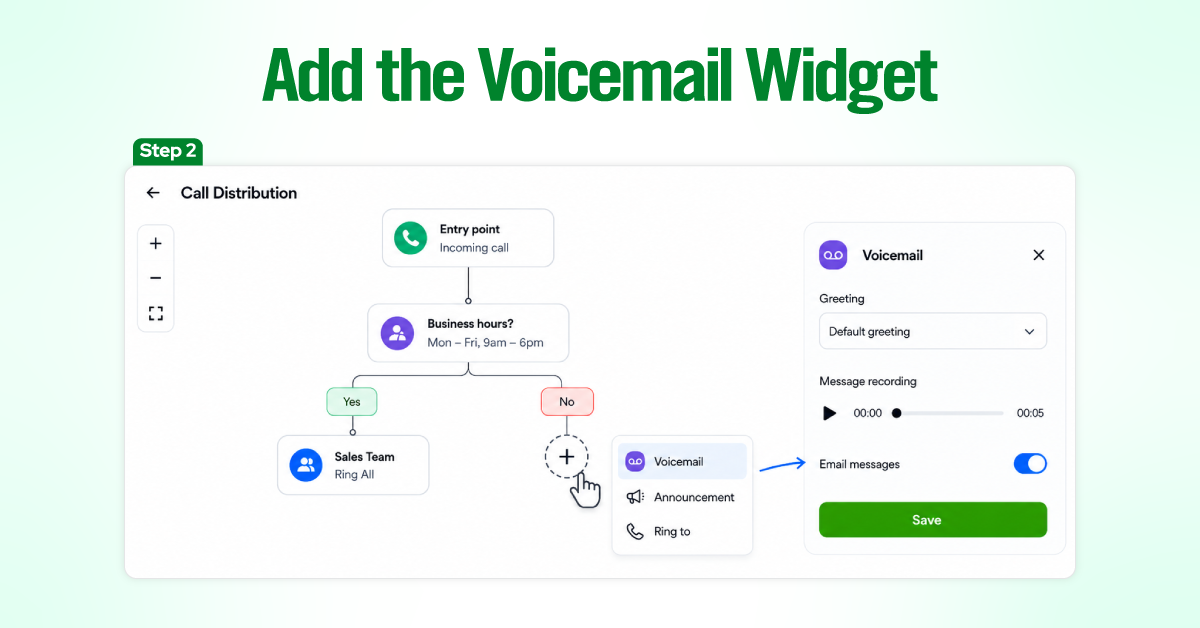
Place the widget according to how voicemail should be used:
- After-hours calls: Add it to the At any other time branch of a Time Rule.
- Unanswered calls: Add it after a Ring to widget.
- IVR fallback: Add it to the No or Wrong Input branch so callers are not disconnected without guidance.
The Voicemail widget must be the final step in its branch. Once a caller records a message, the call ends, and Aircall ignores any widgets placed after it.
Step 3: Configure the Voicemail Greeting
Open the Voicemail message section and choose how you want to create the greeting:
- Text to speech: Enter a message and select a language and voice.
- Custom file: Upload a prerecorded MP3 file.
- Record directly: Record your greeting inside the Aircall Dashboard.
Keep the message short and tell callers what information to leave. For example:
“We cannot answer your call right now. Please leave your name, phone number, and reason for calling after the tone.”
For text-to-speech greetings, choose the appropriate language and voice, then preview the message before publishing. Voice speed cannot be adjusted, so try another voice if the message sounds too fast or slow.
Step 4: Set the Maximum Message Duration
Open the Caller’s message section and select how long callers can record. Aircall recommends allowing up to three minutes, so callers have enough time to complete their message.
Aircall automatically ends the call when:
- The caller does not begin speaking within five seconds.
- The caller pauses for more than five seconds while recording.
To prevent callers from being disconnected, ask them to begin speaking promptly and avoid long pauses.
Step 5: Publish the Smartflow
Review the voicemail greeting, recording duration, and widget placement. When everything is correct, click Publish to activate the updated call flow.
Your changes will not affect incoming calls until the Smartflow has been published.
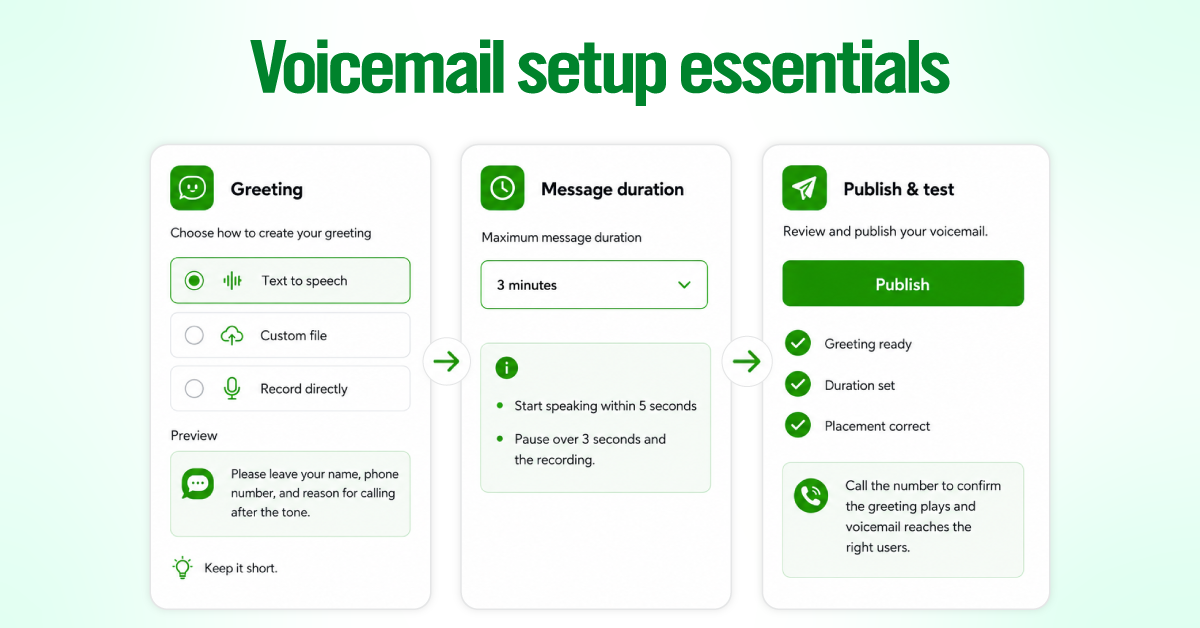
Final check: Call the number yourself and confirm that the greeting plays, the recording starts correctly, and the voicemail reaches the intended users.
The Voicemail Placements That Matter Most
Most Aircall voicemail setups use two core patterns: after-hours voicemail and unanswered-call voicemail. You can also add voicemail as a fallback inside an IVR menu.
After-Hours Voicemail
Add a Voicemail widget to the At any other time branch of a Time Rule. This directs callers to voicemail when they contact your business outside its configured opening hours.
Make sure the Time Rule uses the correct time zone. This setting affects both call routing and the appearance of time data in Smartflows reports.
Unanswered-Call Voicemail
Place the Voicemail widget directly after a Ring to widget.
If no one answers or no agents are available, the call goes to voicemail instead of ending, leaving the caller no way to leave a message.
IVR Voicemail Fallback
Connect a Voicemail widget to the IVR’s No input and Wrong input fallback branches.
This gives callers another option when they do not press a key or select an invalid one. Aircall requires these branches to lead to a valid next step, such as an Audio or Voicemail widget, to prevent routing warnings or ignored branches.
Troubleshooting Aircall Voicemail Issues
Most Aircall voicemail problems come from an incomplete route, incorrect widget placement, unpublished changes, or number-level access. Start with what the caller or user is experiencing, then trace the exact branch involved.
The Smartflow Shows a Warning
A warning near Publish usually means one of the call routes is incomplete. This often happens when the “At any other time” or “No or Wrong Input” branch has no next step.
Open the warning, locate the affected branch, and add the appropriate Voicemail, Audio, or Ring to the widget. Aircall may still allow the flow to be published, but an empty branch can be ignored during routing, leaving callers without the fallback you intended.
Callers Hear the Greeting but Cannot Leave a Message
This is commonly caused by Aircall’s five-second silence rule. The call ends if the caller does not begin speaking within five seconds or pauses for too long while recording.
In practice, the greeting is usually the first thing to fix. Keep it short and prompt callers to speak immediately:
“Please leave your name, number, and reason for calling after the tone.”
Avoid long introductions before the instruction. The sooner callers understand what to do, the less likely they are to be disconnected.
Voicemails Are Not Reaching the Right Users
When a voicemail is recorded but nobody can find it, check the number assignments before rebuilding the flow.
Users who should answer live calls need to be part of the number’s call distribution. Users who only need access to recordings and call information can be added under Call and data access without including them in the live ringing sequence.
This distinction is easy to miss and is one of the first settings we check when voicemail routing appears correct, but access is inconsistent.
Voicemail Email Notifications Are Missing
A user may have access to voicemail in Aircall without receiving an email notification. Email alerts are controlled separately at the user level.
Ask the affected user to check:
Settings → Notifications → Voicemails
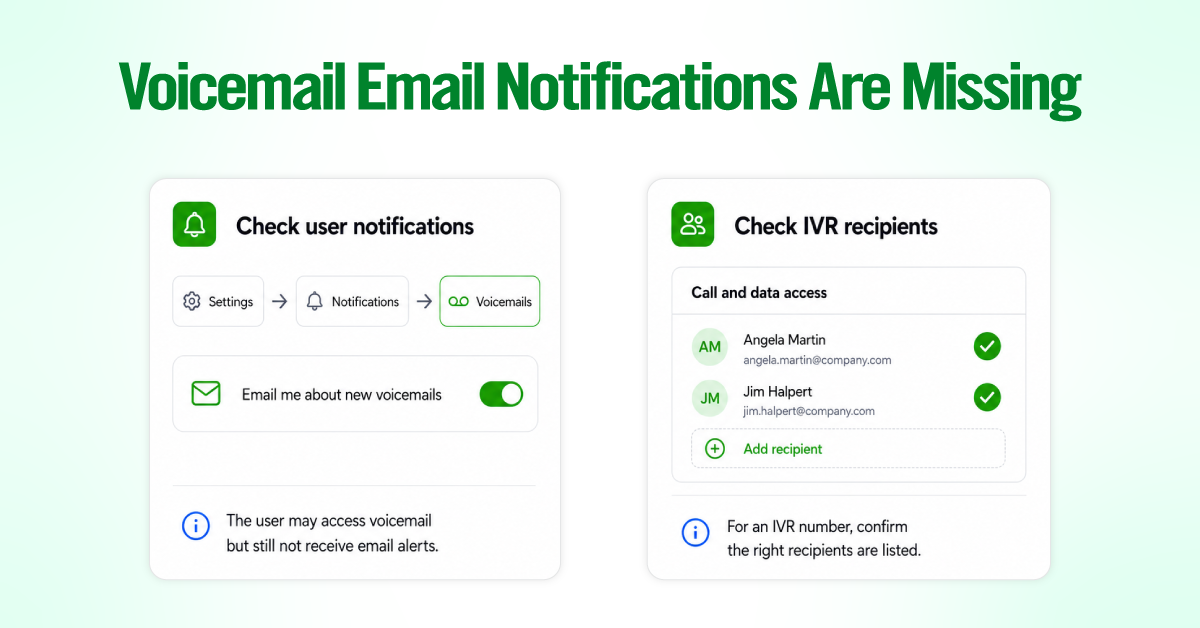
For an IVR number, also confirm that the intended recipients are included under Call and data access. Checking both settings prevents unnecessary changes to a Smartflow that is already routing correctly.
The IVR shows a No Input or Wrong Input warning
An IVR route needs a valid destination when a caller does not press a key or makes an invalid selection. If the fallback branch is empty, Aircall displays a warning, and the caller may not reach a useful next step.
Connect an Audio or Voicemail widget to the No or Wrong Input route. For most customer-facing flows, voicemail is the safer fallback because it still gives the caller a way to request a response.
Before routing callers directly to voicemail, also review the retry settings. Replaying the menu once can help callers who simply missed the first prompt.
Calls Disconnect Without Reaching Voicemail
When a call ends before the voicemail greeting plays, trace the route from when the call comes in and follow the same path the caller took.
Check that:
- Every active branch leads to a valid widget
- Voicemail follows the correct Ring to or Time Rule branch
- The latest changes have been published
- Nothing essential has been placed after the Voicemail widget
Voicemail is a terminal step in Aircall. Once the caller records a message, the call ends, and any widget placed afterward is ignored.
Too Many Users Receive IVR Voicemail Emails
This usually happens when several teams share one IVR number, and the number’s access settings are broader than the intended voicemail audience.
Review the structure before changing individual notification preferences. Remove unnecessary voicemail widgets, check the number’s user and team assignments, and confirm who is included under Call and data access.
When Sales, Support, or other departments need separate and private voicemail handling, assigning each team its own Aircall number is often the cleaner solution. It keeps access, notifications, reporting, and ownership easier to manage.
Final thought
Voicemail in Smartflows is less about the greeting and more about placement. Once you internalize that the widget ends the flow, the rest falls into place.
Put it on the closed leg of a Time rule for after-hours, put it after a Ring to for unanswered calls, back your IVR dead-ends with it, link the right users to the number, and publish. Do that, and callers stop hitting silence while your team stops missing messages.
If you are auditing an existing setup, start with the branches carrying orange warning dots and the number’s user assignments, because that is where the real problems almost always hide.