TL;DR
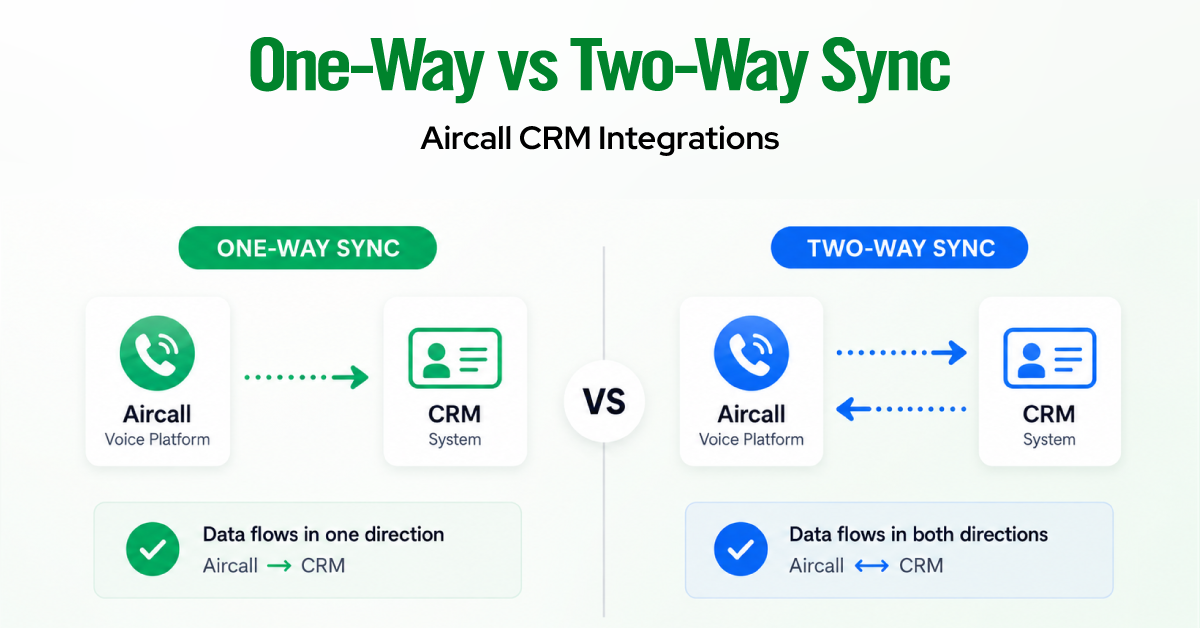
- Aircall has no single global sync toggle. Direction is set per data type, so one integration is usually one-way for some objects and two-way for others.
- Call activity, recordings, tags, notes, and SMS log one-way from Aircall into your CRM. This is by design and cannot be reversed.
- Native contact sync pulls CRM contacts into Aircall on a call trigger, not as a bulk import. A contact only appears after the first call to or from that number.
- True two-way contact sync exists only where you add it. On HubSpot, that means the separate HubSpot Data Sync app. On any CRM, it means a custom API built using contact endpoints and webhook events.
- Two rules hold everywhere. Numbers must be in E.164 format in the primary phone field, and synced contacts are read-only inside Aircall.
- Correction to older guides, including the outline this post was built from. HubSpot Data Sync offers three contact-sync directions, not four. We verified this against HubSpot’s live documentation.
If you connected Aircall to HubSpot, Salesforce, or Pipedrive expecting a clean, symmetric two-way sync but instead found missing contacts, edits that do not carry over, or records that do not match, the issue is usually not your setup.
The difference between one-way vs two-way sync in Aircall CRM integrations comes down to one important design choice: Aircall does not use a single global sync toggle. Instead, sync direction is defined by data type, so the same integration may be one-way for some objects and two-way for others.
We see this confusion regularly among RevOps leads, sales operations admins, and agency teams. The key distinction is that call activity, recordings, tags, notes, and messages generally flow one way from Aircall into the CRM. Contact behavior is more complex. Contacts may sync from the CRM into Aircall when a call triggers the lookup, while full two-way contact sync is only available through a separate sync tool or a custom API integration.

| Data type | Default direction | Trigger | Can it be changed? |
| Contacts | CRM to Aircall through native contact sync; unmatched calls may also create CRM records | An inbound or outbound call involving the number | Yes. HubSpot Data Sync can support two-way sync in HubSpot, while a custom API integration can provide field-level two-way sync for other CRMs |
| Call activity and recordings | Aircall to CRM as an activity or
task |
When the call starts or ends, depending on the call outcome | No. The direction remains Aircall to CRM |
| Tags and notes | Aircall to CRM, attached to the related activity or record | After the call ends | Limited. The destination object may be configurable in some CRMs, but the direction remains Aircall to CRM |
| SMS, MMS, and WhatsApp | Aircall to CRM as an activity or note | When a message is sent or received | No. The direction remains Aircall to CRM |
Understanding One-Way Sync in Aircall
One-way sync in Aircall means data moves in one direction between Aircall and your CRM. The receiving system stores the data, but changes made there do not sync back to the original source.
Aircall uses one-way sync for two main data flows.
Aircall → CRM: activity logging
Aircall sends the following data into your CRM:
- Call activity
- Call recordings
- Tags and notes
- SMS and other supported messages
Aircall matches each interaction to a CRM record using the phone number. If it cannot find a match, it may create a new record when automatic record creation is enabled.
The exact record type depends on the CRM and your settings. For example, an unmatched number may become a new Person in Pipedrive or a Contact, Lead, Account, or Person Account in Salesforce.
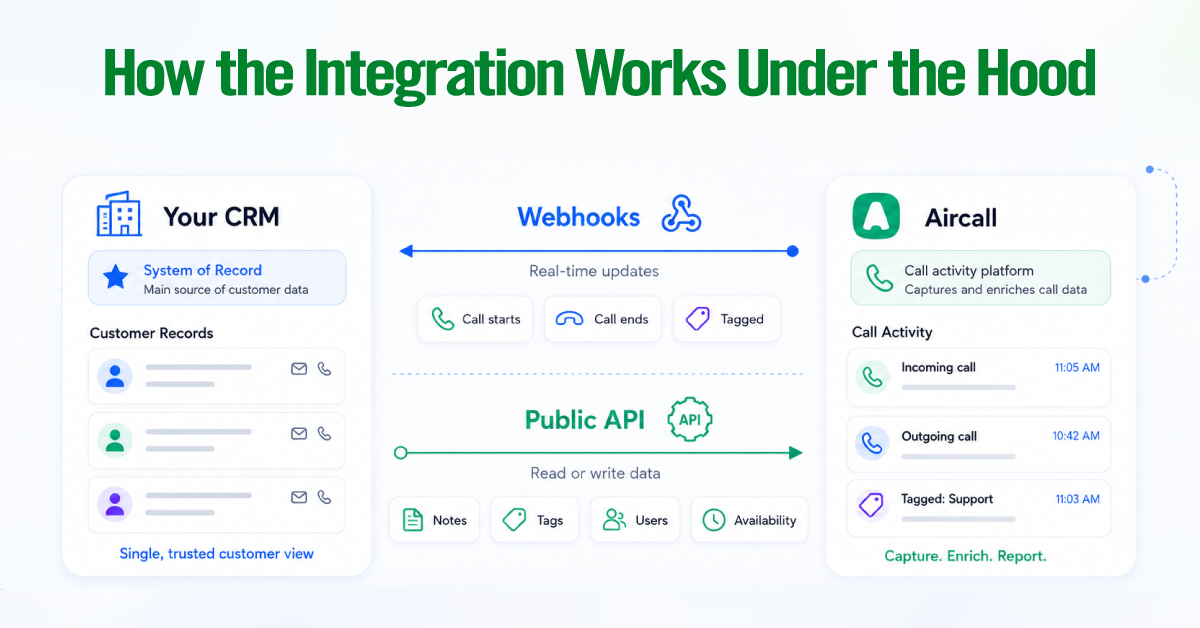
Call activity remains one-way by design. Aircall serves as the source of the phone interaction and then sends that history to the CRM. CRM edits are not pulled back into Aircall. This prevents both systems from updating the same activity and helps maintain one reliable call timeline.
CRM → Aircall: caller identification
A separate one-way flow moves contact names and phone numbers from the CRM into Aircall. This allows agents to see who is calling, not just a phone number.
Native Contact Sync is typically call-triggered rather than a bulk import. A CRM contact may not appear in Aircall until the first inbound or outbound call involving that number. This is why a newly connected Aircall directory can look empty even when the integration is configured correctly.
The CRM should remain the source of truth for contact details. Update names, numbers, and customer information in the CRM rather than Aircall.
HubSpot Data Sync works differently
HubSpot’s separate Data Sync app makes the sync direction an explicit setting. You can choose:
- One-way from HubSpot to Aircall
- One-way from Aircall to HubSpot
- Two-way contact sync
In most other native Aircall CRM integrations, one-way sync is determined by the data type rather than a global setting.
How Two-Way Sync Improves Rep Workflows
Two-way sync means a supported update made in either Aircall or the CRM is reflected in the other system. For sales and support reps, the main benefit is simple: they spend less time checking records, switching tabs, and copying contact details between tools.
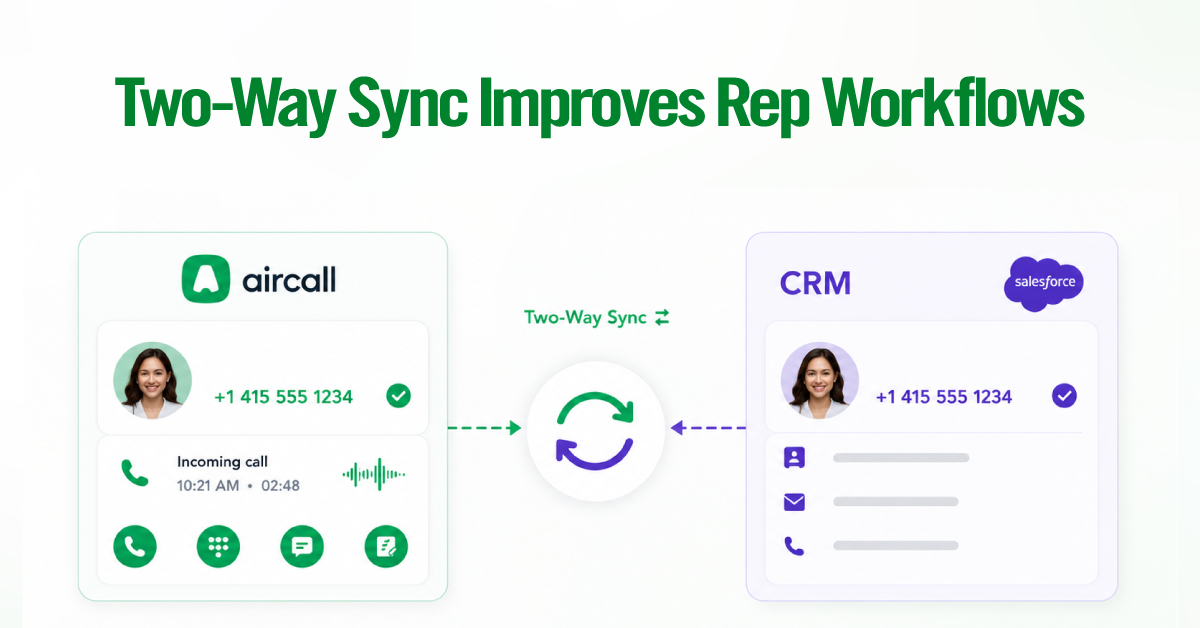
When contact data stays aligned, the number updated in the CRM is available when the rep calls through Aircall. A new contact does not need to be entered twice, and reps are less likely to work from an outdated phone number or duplicate record.
Less manual work during every call
Two-way contact sync removes several repetitive tasks from a rep’s day:
- Checking whether Aircall or the CRM has the latest number
- Copying names and phone numbers between systems
- Creating the same contact in two places
- Correcting records after a call is logged against the wrong person
Each task may take only a few seconds, but the time adds up across a team handling hundreds of calls every week.
More reliable context inside Aircall
Accurate contact data also makes Aircall’s workflow features more useful.
Insight Cards can display caller details, record ownership, and related deals or tickets when a call connects. Reps begin the conversation with context instead of searching for the correct CRM record.
Click-to-call allows reps to dial directly from a contact, company, deal, or supported CRM record. This reduces manual dialing and helps attach the call to the right customer history.
Power Dialer processes numbers from a CRM list or webpage in sequence. Its value depends on the underlying contact information being current and correctly matched.
More calling time and cleaner records
The business value comes from reducing low-value administration. Reps spend less time re-entering data and more time speaking with prospects or customers. Records also stay cleaner because teams are less likely to create duplicates or maintain conflicting versions of the same contact.
The important limitation is that this behavior varies by integration. HubSpot Data Sync can provide native two-way contact synchronization. In Salesforce and Pipedrive, native integrations may create or match records in both directions when calls occur, but that is not the same as a continuous field-level mirror.
Teams that need every supported contact field to update automatically in both Aircall and Salesforce or Pipedrive will generally need a custom API integration.
We cover exactly when that is worth it below.
How Aircall Sync Works Across HubSpot, Salesforce, and Pipedrive
Aircall sync does not behave identically across HubSpot, Salesforce, and Pipedrive. Each integration has different direction controls, record-creation rules, logging options, and setup requirements.
Two contact-sync rules generally apply across supported CRMs:
- Store the number in the CRM’s supported standard phone field using E.164 format, including the country code.
- Edit synced contact information in the CRM, not Aircall. Synced contacts are read-only in Aircall, and updates are reflected only after the contact is synchronized again.
HubSpot: configurable sync direction
HubSpot provides the most flexible native contact-sync setup. The main Aircall integration handles calling, activity logging, contact creation, and caller context. A separate HubSpot Data Sync connection controls how contact records move between the two platforms.
You can configure:
- Two-way: HubSpot and Aircall exchange supported contact updates.
- HubSpot to Aircall: Contacts move into Aircall only.
- Aircall to HubSpot: Contacts move only into HubSpot.
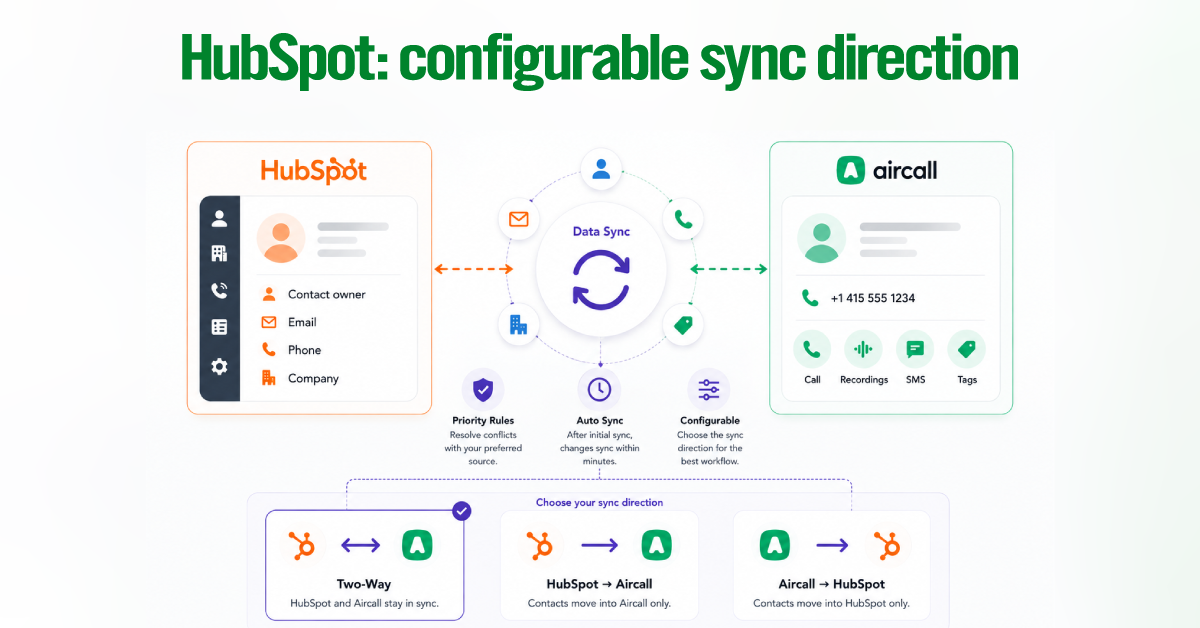
For conflicting field values, HubSpot Data Sync lets you choose which application takes priority. After the initial sync, supported changes normally synchronize within several minutes. Custom field mapping availability depends on the HubSpot subscription and data-sync features in use.
Best for: Teams that need configurable, ongoing contact synchronization without building a custom integration.
Salesforce: flexible logging, stricter prerequisites
Aircall can synchronize Salesforce contacts into the Aircall directory and match calls against Contacts, Leads, Accounts, and Person Accounts. Contact Sync occurs record-by-record when calls are made or received, rather than as an automatic bulk import.
In the current Salesforce CTI v3 integration, Aircall activity can be logged in two ways:
- Task and Aircall Log object
- Aircall Log object only
The Aircall Log object stores richer call and message details, while Tasks keep activity visible in the traditional Salesforce timeline.
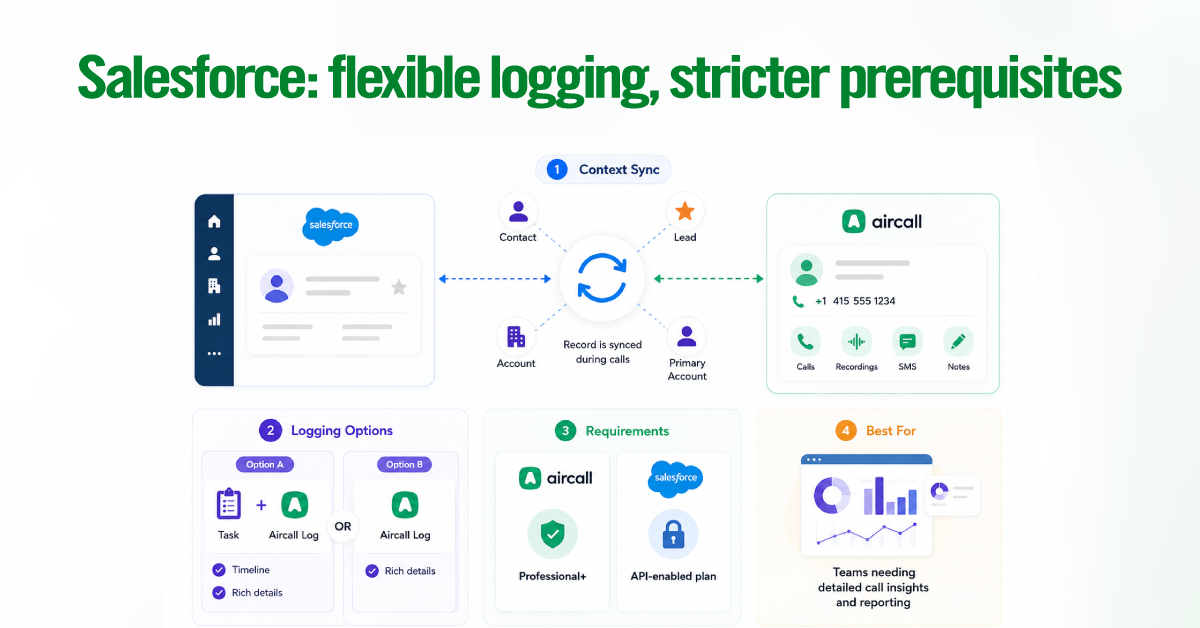
Salesforce also has stricter plan requirements. Aircall requires a Professional or Custom plan, while Salesforce generally requires Enterprise, Unlimited, or Professional with purchased API access.
Best for: Salesforce teams that need detailed call logging, reporting, and control over how activities appear in the CRM.
Pipedrive: activity-focused synchronization
Aircall logs calls and messages in Pipedrive as Activities and matches them to People by phone number. When no matching Person exists, and automatic creation is enabled, the integration can create a new record for the number.
Aircall tags can sync to one selected destination, such as:
- A Pipedrive Activity
- A Person
- A Deal
- A Lead
- No object
Only one destination can be selected at a time.
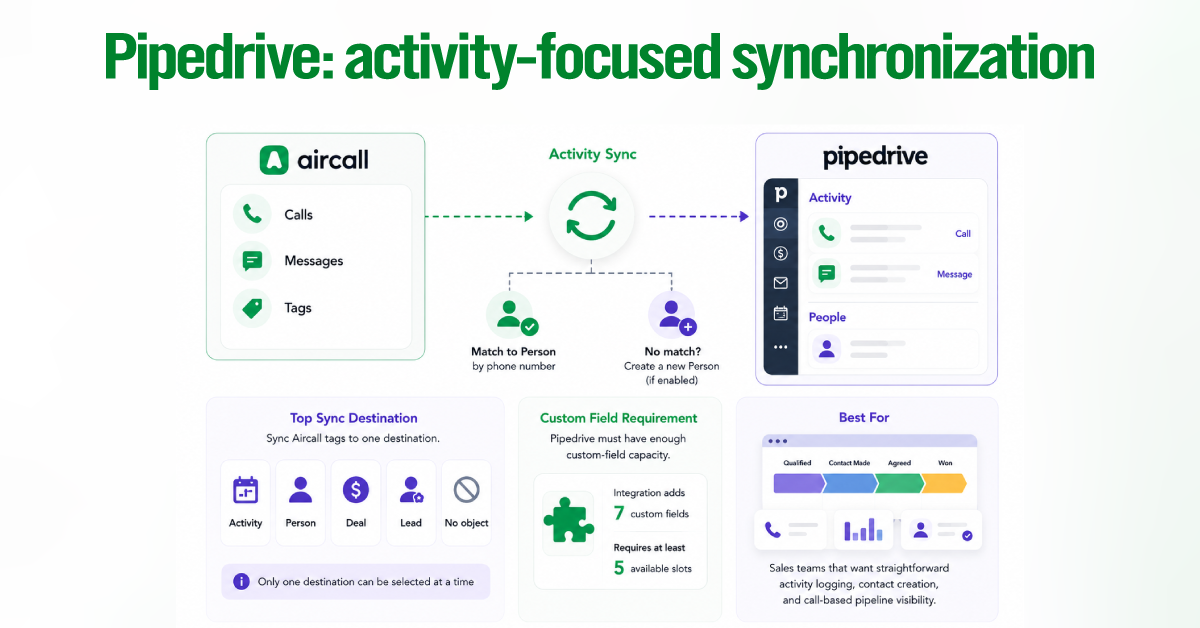
Before installation, confirm that Pipedrive has enough custom-field capacity. Aircall’s current documentation says the integration adds seven custom fields and requires at least five available slots to proceed.
Best for: Sales teams that want straightforward activity logging, contact creation, and call-based pipeline visibility.
Native Connector vs Automation Platform vs Custom API
Choose a native connector for standard CRM calling workflows, an automation platform for conditional actions across tools, and a custom API integration when you need more control than the available connectors offer.
The right choice depends on the workflow, supported data, maintenance capacity, and the extent to which your requirements differ from Aircall’s standard activity-logging model.
| Approach | Best for | What it provides | Main limitation |
| Native connector | Teams using Aircall with one supported CRM | Contact matching, call and message logging, caller context, and CRM-based calling features supported by that connector | Behavior varies by CRM, and customization is limited to the available settings |
| Automation platform | Conditional workflows across Aircall and other apps | Trigger-based actions, branching logic, alerts, task creation, and cross-tool data movement | Event-based rather than a continuous field-level mirror |
| Custom API integration | Complex data models and controlled synchronization | Custom contact sync, field mapping, record routing, webhook workflows, and integration with internal systems | Requires development, monitoring, and ongoing maintenance |
Use the native connector for standard CRM workflows
A native connector is usually the best starting point when the goal is to make calls from the CRM, identify callers, and automatically log phone activity.
Depending on the CRM, it may support:
- Contact matching and synchronization
- Call and message logging
- Insight Cards
- Click-to-call
- Tags, notes, or recording links
- Automatic record creation
Native Contact Sync is commonly triggered when a call is made or received, rather than by a bulk transfer of all CRM contacts. Synced contact details should generally be maintained in the CRM.
Choose this when: The supported connector already covers your call-handling and activity-logging requirements.
Use Zapier or Make for conditional workflows
An automation platform works well when an Aircall event needs to trigger an action outside the CRM.
For example, you could:
- Alert Slack when a call is missed
- Create a follow-up task after a tagged call
- Add call information to a spreadsheet
- Route an action based on the call outcome
- Update another sales or support tool
Aircall’s Zapier integration uses triggers and actions across calls, contacts, users, numbers, messages, and supported AI events. This makes it useful as a configurable workflow layer, but it does not automatically create a continuous two-way field mirror between databases.
Choose this when your workflow spans multiple tools or requires conditions that the native connector does not expose.
Use a custom API build for deeper control
A custom integration is appropriate when the required data model cannot be handled reliably through native settings or trigger-based automation.
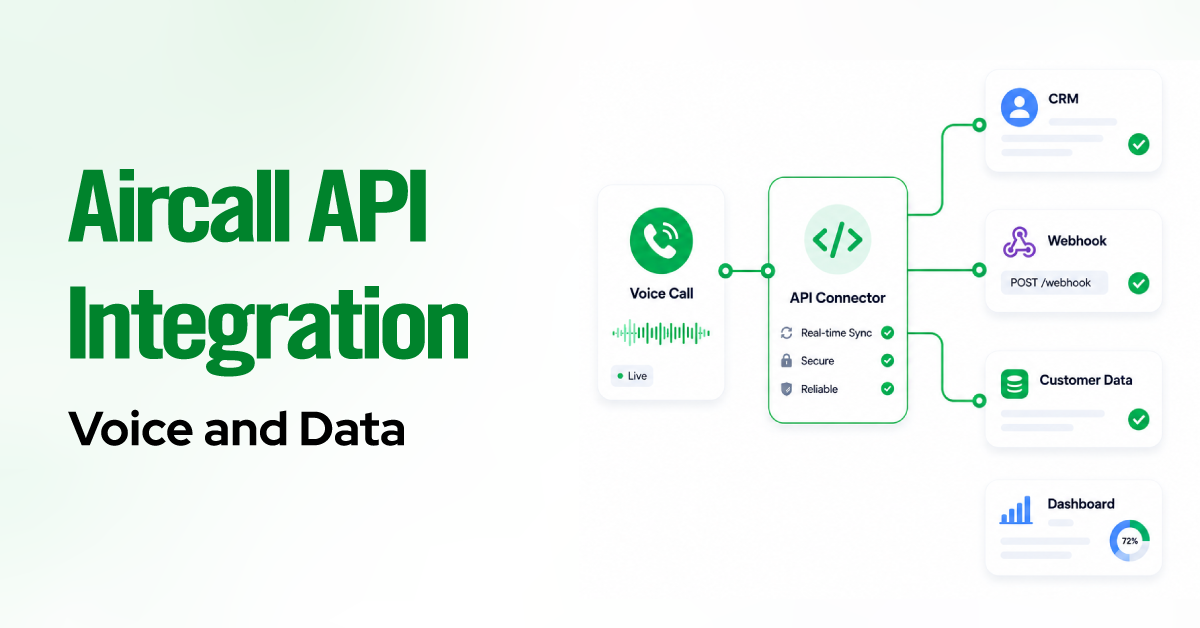
Aircall’s Public API can retrieve and manage supported Aircall data, while webhooks can notify your system when events occur.
This approach can support:
- Field-level contact synchronization
- Custom record-matching rules
- Contact creation, updates, and deletion
- Custom disposition mapping
- Routing to custom CRM objects
- Workflows connected to internal databases
Aircall specifically documents the use of its contact endpoints via contact-created, updated, and deleted webhook events to build two-way contact synchronization.
The trade-off is ownership. Your team or implementation partner must handle authentication, error recovery, rate limits, monitoring, security, and future API changes.
Choose this when the workflow is business-critical and requires data control that native connectors or automation platforms cannot provide.
Best Practices for Setting Up Your Aircall Sync
Set the format and fields correctly before your first sync, and most Aircall sync problems never happen. Nearly every “contacts not syncing” and duplicate-record ticket we see traces back to one of the failure points below, so treat this as a pre-flight checklist rather than troubleshooting after the fact.
- Format every number as E.164 with the country code. That means the plus sign, country code, and number with no spaces, for example, +15555555555. Other formats will not sync through Contact Sync.
- Keep numbers in the primary phone field, not a custom field. Contact Sync only reads the main phone field. Numbers stored in mobile-only, secondary, or custom fields will not sync, even if call logging sometimes still finds them.
- Bulk import through the Desktop or Web app. Because native sync is call-triggered, existing contacts do not flood into Aircall on connection. To load a full list at once, export from your CRM and import through the Aircall Desktop or Web app.
- Do not try to edit synced contacts inside Aircall. They are read-only there. Make the edit in the CRM, and it will reach Aircall on the next call with that contact, or after you refresh the record.
- Set the default app before turning on two-way sync. In HubSpot Data Sync, specify which system wins a field conflict so you are not surprised when Aircall values quietly overwrite CRM values, or vice versa.
- Test with a small static list first. Sync ten known contacts, confirm the match, formatting, and direction behave as expected, then widen the scope. This catches a bad field mapping before it touches your whole database.
- Never run two conflicting sync solutions into the same CRM. Using a native connector and a Zapier or Make workflow that writes contacts to one CRM is the fastest way to create duplicates and trigger edit loops. Pick one path per object and stick to it.
Test on 10 contacts before you sync 10,000. A five-minute check with a small static list surfaces almost every mapping and formatting error, while it is still trivial to fix.
Final Thought
One-way vs two-way sync in Aircall comes down to one thing. There is no master switch, so direction is set on an object-by-object basis. Calls, recordings, tags, notes, and SMS log one-way from Aircall into your CRM. Contacts flow into Aircall on a call trigger and stay read-only there. Genuine field-level two-way contact sync is not a default anywhere.
On HubSpot, you get it from the separate HubSpot Data Sync app, and in any CRM, via a custom API built using contact endpoints and webhook events. Native Salesforce and Pipedrive sync is call-triggered creation, not a live mirror.
Whichever path you choose, the rules hold. Keep numbers in E.164 format in the primary phone field, bulk-import existing contacts through the Desktop or Web app, and never run two sync solutions into one CRM. Do that, and the integration behaves as you expected from day one.