Do your Aircall call logs and CRM reports constantly seem out of sync? You’re not imagining it. Data discrepancies between your VoIP system and CRM platform can lead to reporting gaps, missed follow-ups, and inaccurate performance metrics.
Whether you’re using Salesforce, HubSpot, Zoho, or Pipedrive, these issues typically stem from improper syncing, inconsistent field mapping, or gaps in integration.
Common Aircall–CRM Sync Issues
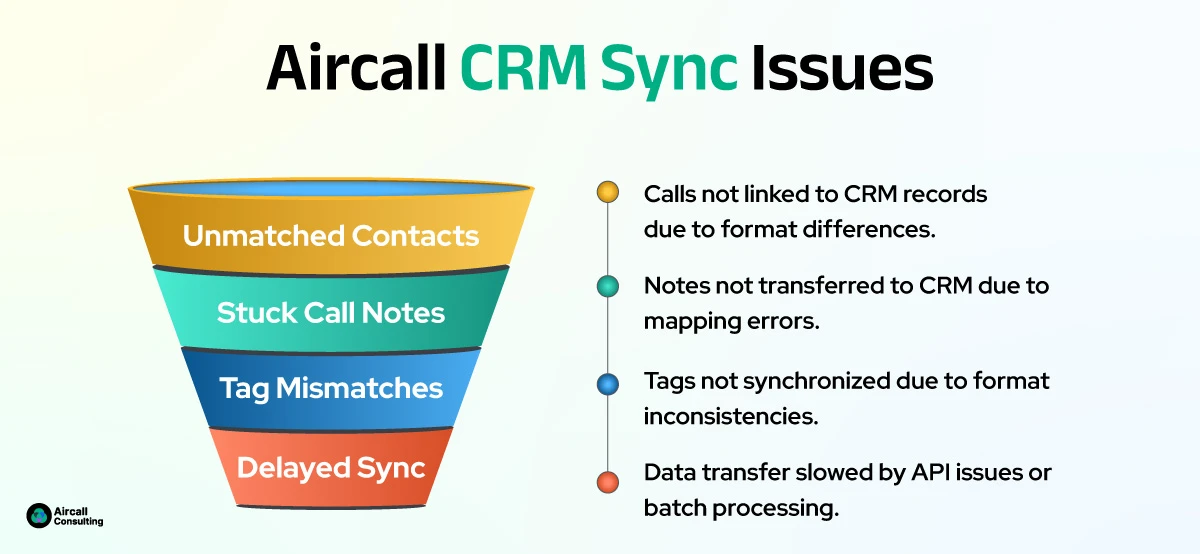
Here are the common Aircall CRM syncing issues:

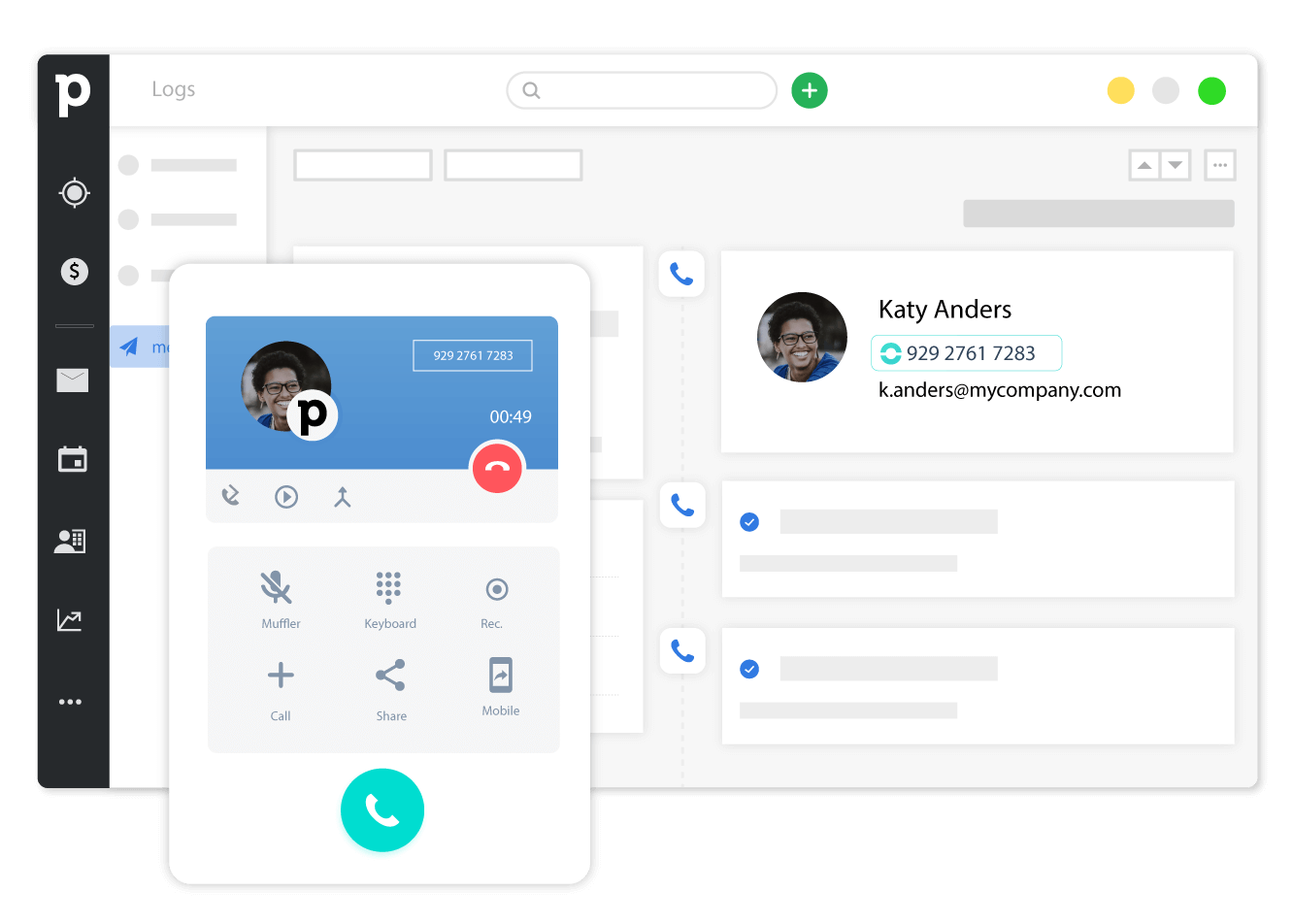
Unmatched Contacts or Leads
Phone numbers that aren’t associated adequately with CRM records cause call logs to float without context.
Call Notes Stuck in Aircall
Reps take notes in Aircall, but without proper sync configuration, those notes never reach the CRM timeline.
Tag Mismatches
Aircall allows freeform tags, while CRMs often rely on predefined dropdowns or custom fields, leading to failed sync attempts or messy reports.
Delayed Sync from API Timeouts
If your integration relies on periodic syncs, calls may be missing during report snapshots, resulting in data latency.
How to Fix Your Aircall–CRM Sync Gaps?
1. Use Consistent Identifiers
Ensure phone numbers and emails are formatted and stored uniformly across Aircall and your CRM. This is essential for accurate record matching.
2. Standardize Tags Across Platforms
Limit tag usage in Aircall to reflect your CRM’s dropdown or multi-select fields. Avoid allowing representatives to create new, unstructured tags freely.
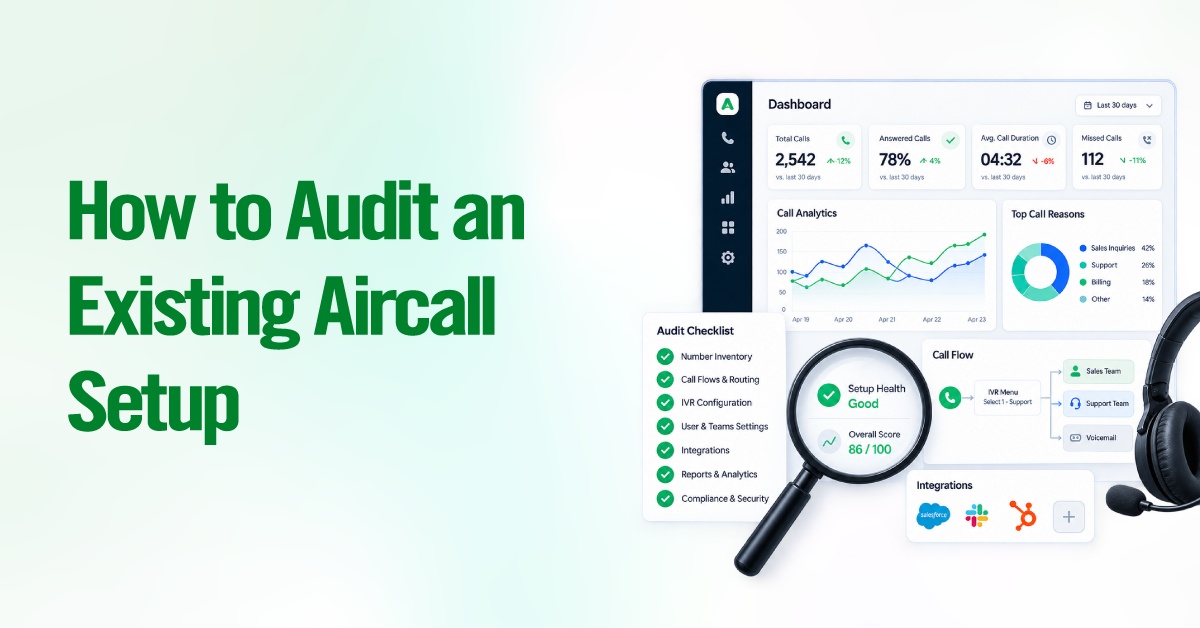
3. Perform Routine Integration Audits
Every 60–90 days, audit your Aircall–CRM connection to identify broken mappings, sync failures, or field changes. Track call log completion rates in your CRM to spot discrepancies.
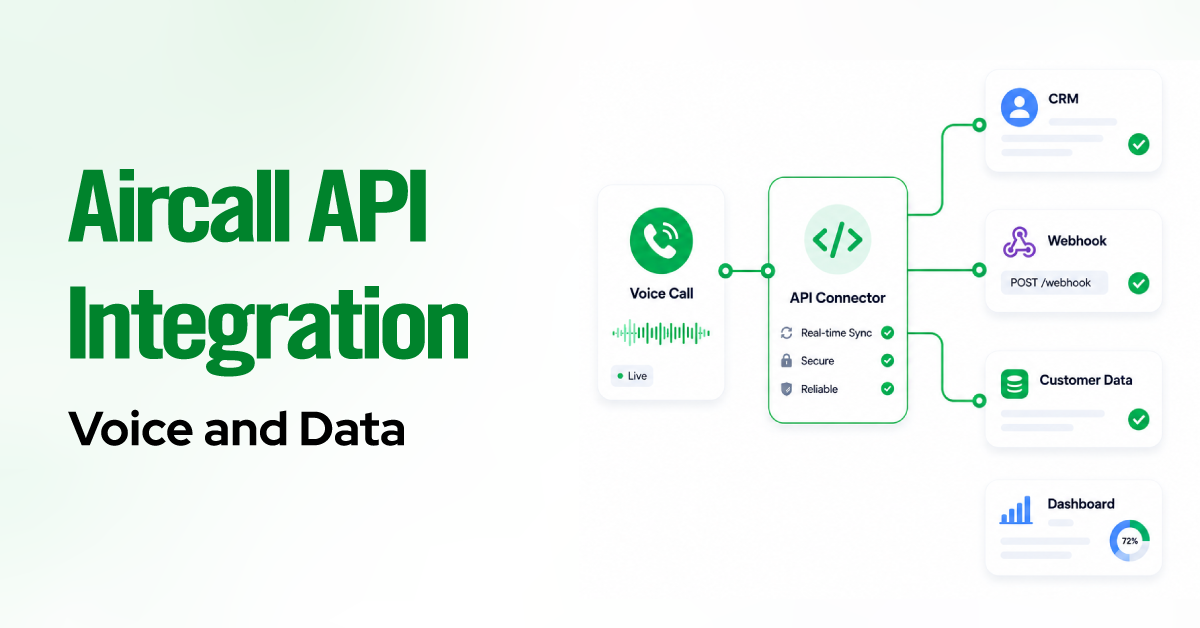
4. Use Middleware for Custom Mapping
Tools like Zapier, Make.com, or Tray.io let you build customized sync logic between Aircall and your CRM, helping you bridge the gaps with advanced filtering and error handling.
Build a Reconciliation Report
Use your CRM’s reporting engine to build a reconciliation dashboard that compares:
-
Total Aircall call logs
-
CRM call activities
-
Unmatched or orphaned call records
This lets you catch sync failures proactively and maintain data integrity.