Sign up for a FREE trial here

Set Up an Aircall Inbound Sales Smartflow That Routes Every Lead

A prospect who picks up the phone is further along than one who fills in a form. They have a budget in mind, a problem to solve and, usually, two other suppliers to call if you do not answer. The inbound sales line is where that intent either turns into a conversation or disappears.

This guide walks through the full build in seven widgets, from the hours check at the top to the after-hours message at the bottom, using a sample flow built for a small sales team.
Where inbound sales lines leak leads

Sales flows rarely fail in an obvious way. The canvas looks complete, the greeting sounds fine, and calls still slip away at three predictable points.

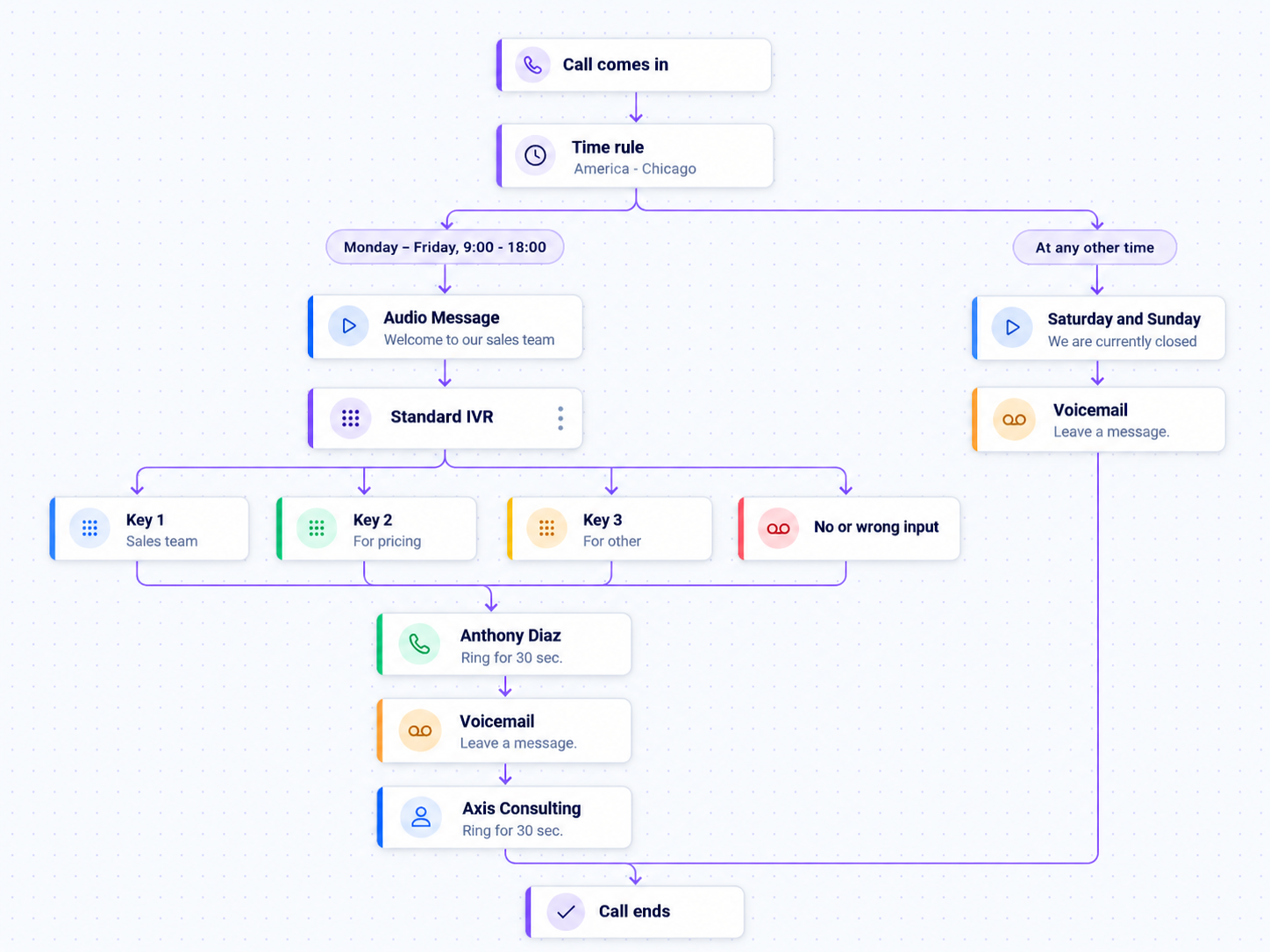
The flow below closes all three gaps. A missed call moves from the rep to a team before it ever reaches voicemail, and every branch has somewhere to go.

Aircall call-routing flow

Work through the five steps below in the order they appear, top to bottom. A widget can only be attached once the branch above it exists, so open your Smartflow and start with the time rule.

1. Define Your Sales Hours

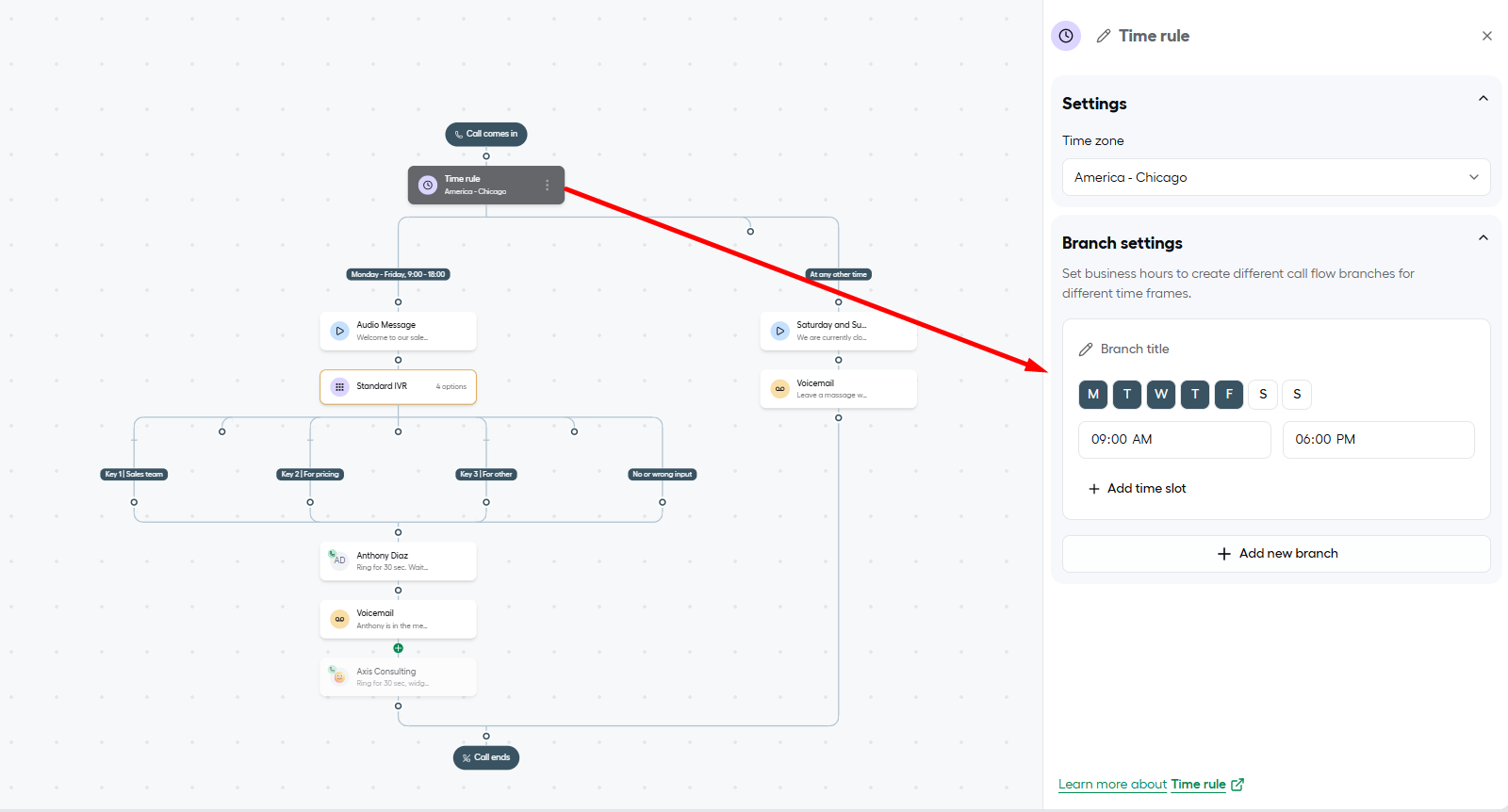
The time rule is the first fork in the road. It sends weekday callers to your reps and everyone else to the after-hours branch.

  1. Select the Time rule widget under Call comes in.
  2. Pick the time zone your reps sit in. The sample runs on America, Chicago.
  3. Under Branch settings, tick Monday to Friday on the first branch.
  4. Enter your sales hours, for example 9 AM to 6 PM, and add a second time slot if the team breaks for lunch together.
  5. Keep the At any other time branch as it is.

If your reps cover more than one time zone, set the rule to the zone where most of them work and widen the hours rather than building a branch per city. Fewer branches means fewer places for a call to go missing.

Aircall call routing time zone configuration

2. Record a Short Welcome

The welcome message is a handshake, not a pitch. A prospect wants to know they reached the right company and that someone is about to help.
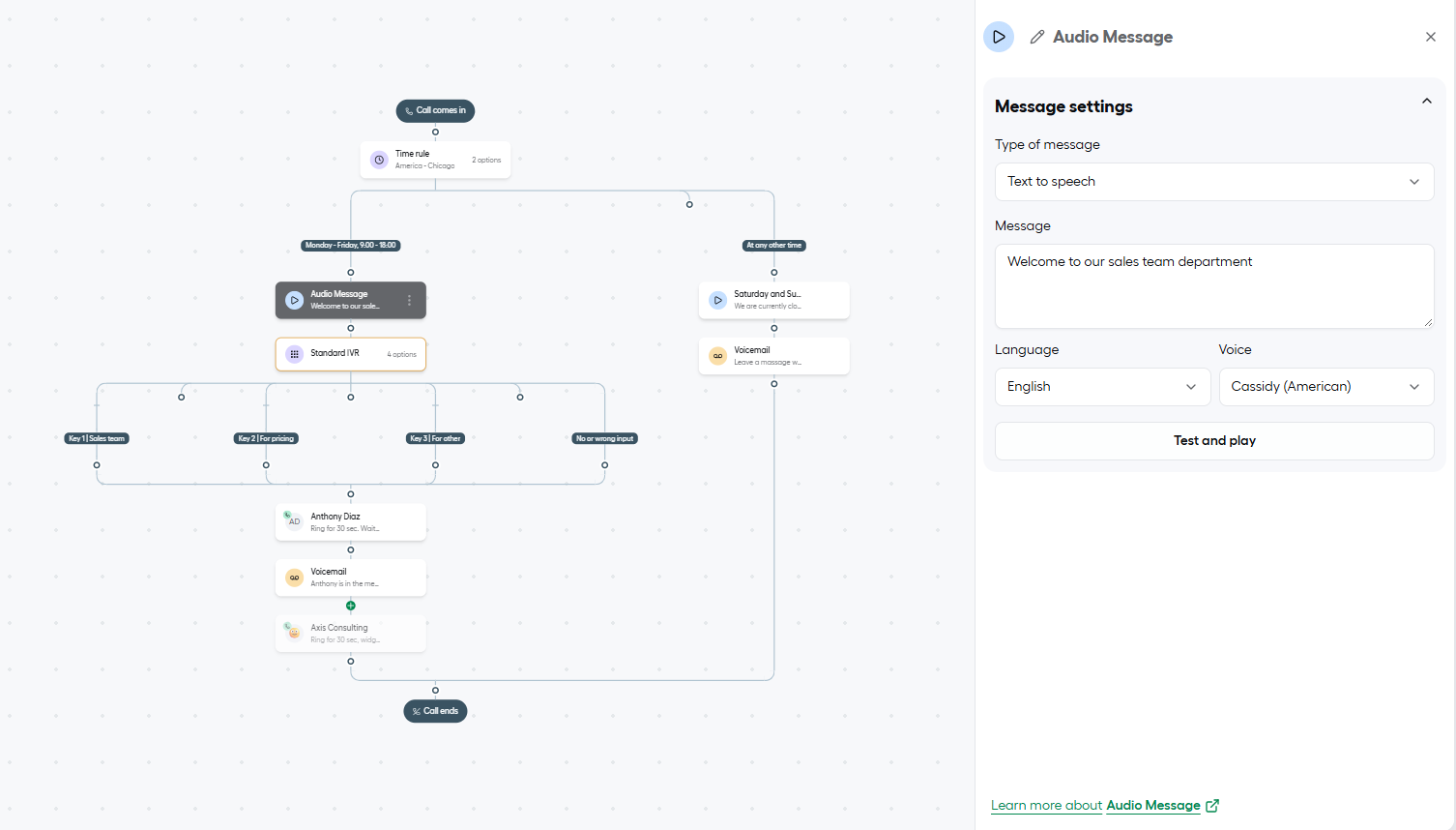
1. Drop an Audio Message widget onto the Monday to Friday branch.
2. Choose Text to speech, or upload a voice recording if your brand has one.
3. Type the welcome, including a line about call recording if your team records calls for coaching.
4. Select the Language and Voice.
5. Press Test and play and listen for any word the voice mispronounces, product names especially.

aircall call routing smatflow audio setup

Read the welcome and the menu from step 3 aloud together before saving either one. If the two together run past fifteen seconds, trim the welcome first, because the menu is the part that moves the caller forward.

3. Build the Keypad Menu

A Standard IVR lets the caller say what they want before anyone picks up, which means the right rep starts the call already knowing the topic.
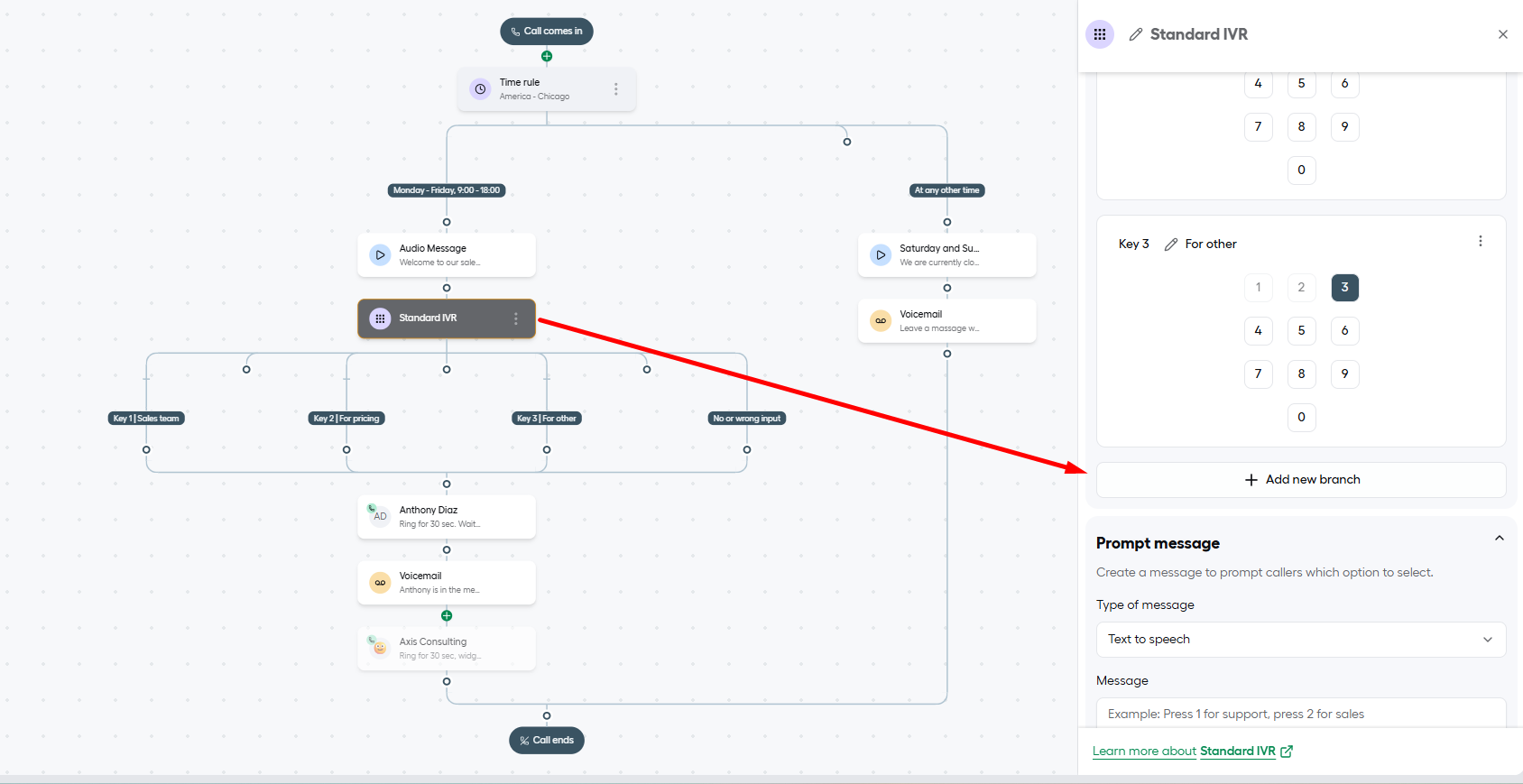
1. Place a Standard IVR widget below the welcome message.
2. Use Add new branch to create one branch per option, then tap the key it belongs to on the keypad grid.
3. Give each branch a plain label. The sample uses Key 1: Sales team, Key 2: For pricing, and Key 3: For other.
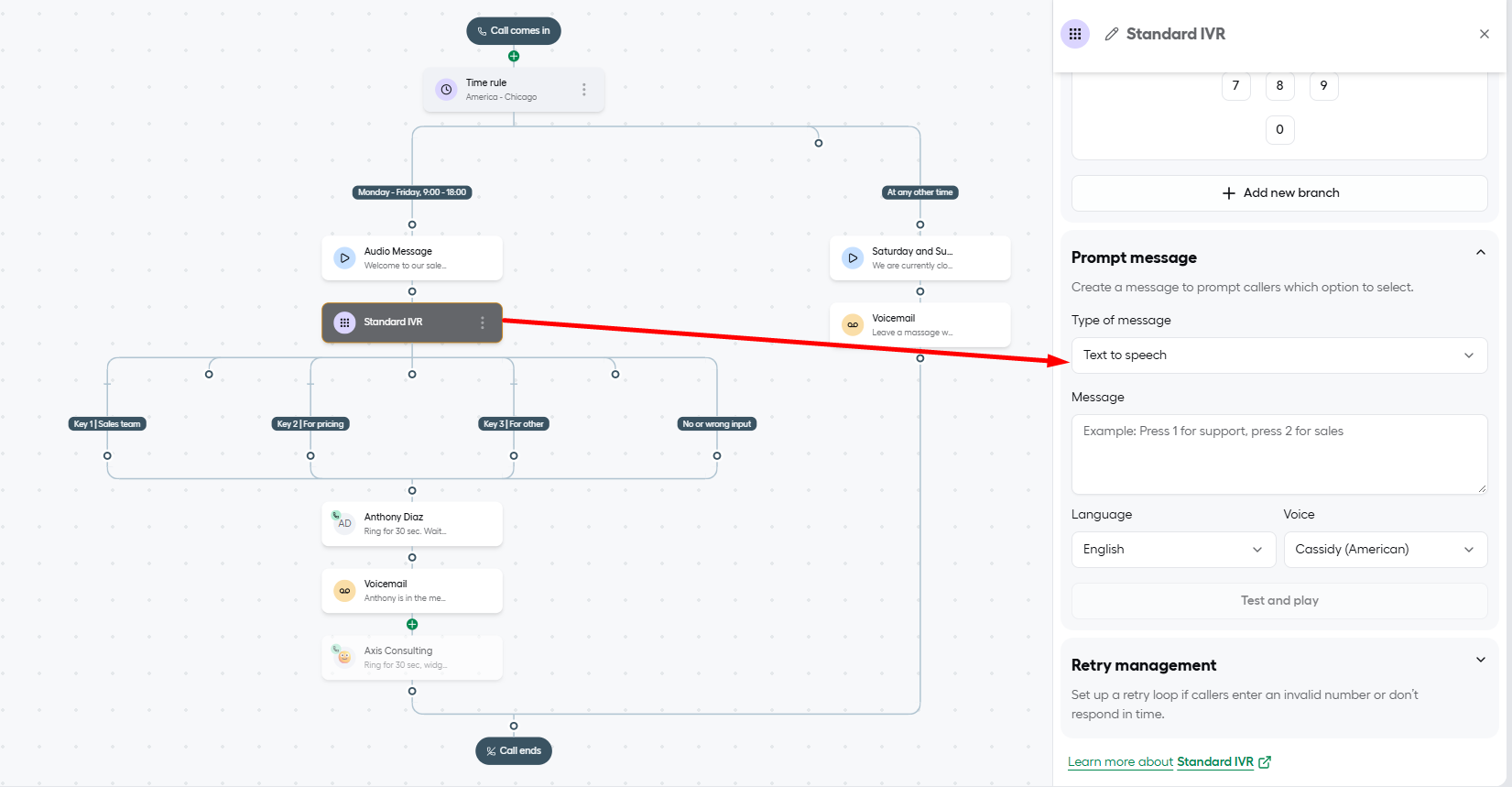
4. In the Prompt message, type the menu so each key is spoken before its option, not after.
5. Keep the Language and Voice the same as the welcome, then Test and play.
6. Expand Retry management and allow at least one repeat for callers who miss the menu the first time.

aircall call routing smatflow ivr setup aircall call routing smatflow ivr message setup

Putting the key before the option matters more than it sounds. Callers listen for the thing they want, and by the time they hear press 2 they have already forgotten which number it was if the option came first.

When you save, the widget shows a fourth branch named No or wrong input. Treat it as a real route. Send it to the same rep as Key 1 so a mistyped key still reaches a person.

Is your sales menu sending leads down the right path?

A single empty branch under the IVR is enough to lose a caller who was ready to buy.
We plan the menu with your sales team, wire every key to the right rep or team, connect it to your CRM and test each route by phone before go live.

4. Connect the Menu to Your Rep

Every key now needs a person on the other end, and the Ring to widget is where you choose who that is.
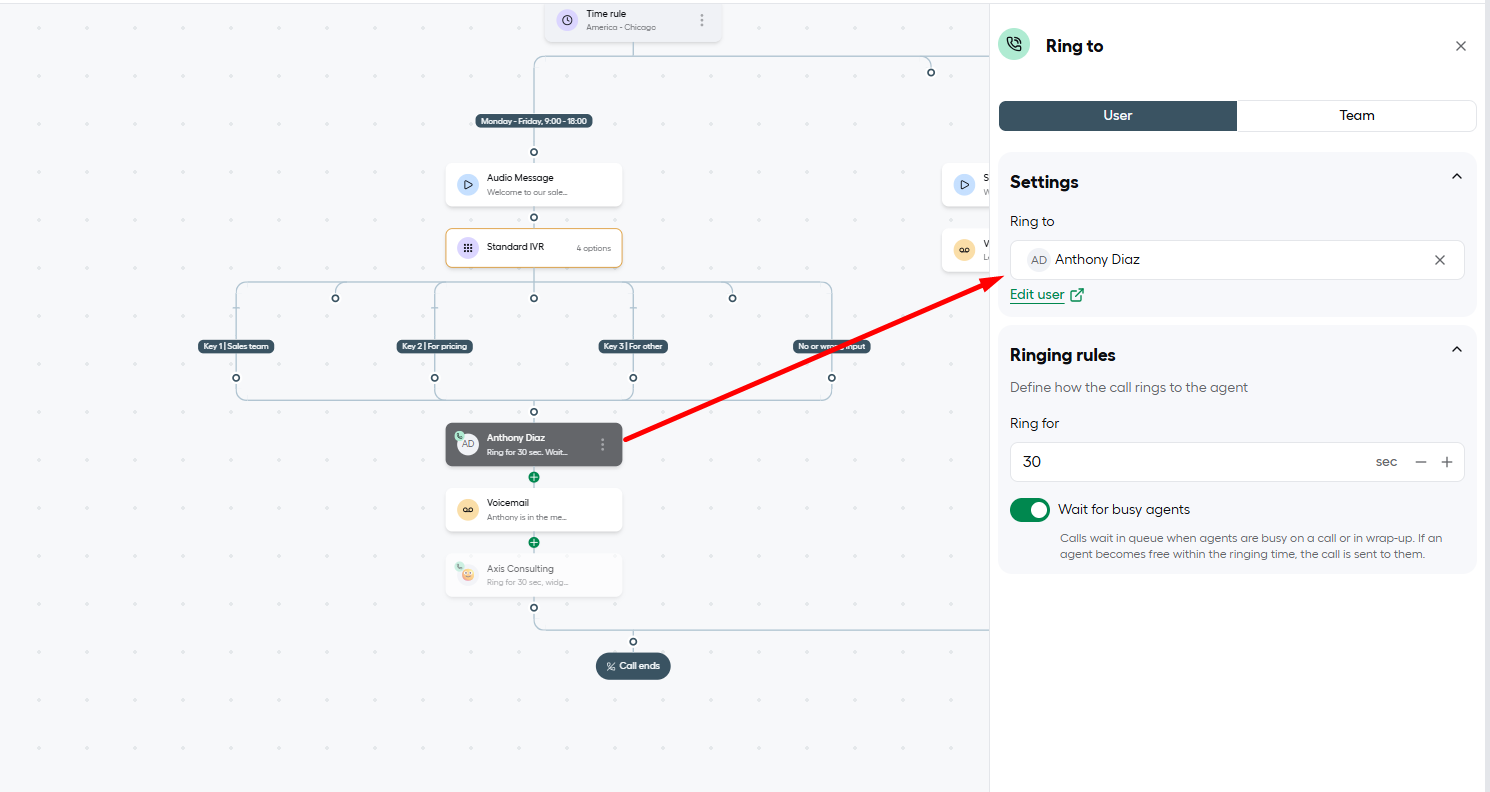
1. Add a Ring to widget under the IVR. In the sample, all four branches meet at this one widget.
2. Stay on the User tab to ring one rep, or switch to Team to ring a group.
3. Choose the rep in the Ring to field. The sample uses Anthony Diaz.
4. Under Ringing rules, set how long the phone rings. The sample uses 30 seconds.
5. Switch on Wait for busy agents so a caller is held, not skipped, while the rep finishes another call.

aircall call routing smatflow call routing setup

Key Note. Routing every key to one rep is fine for a demo flow and risky on a real sales line. Reps spend much of the day on outbound calls and demos, which is exactly when inbound leads arrive. If you keep a single rep here, step 5 is not optional.

Once volume grows, split the keys. Pricing calls often suit a senior rep who can talk numbers, while Key 3 can go to whoever handles general enquiries.

5. Add a Team as the Safety Net

A second Ring to widget gives every unanswered call one more chance to reach a live person.

  1. Add another Ring to widget immediately below the rep, and above where the voicemail will go.
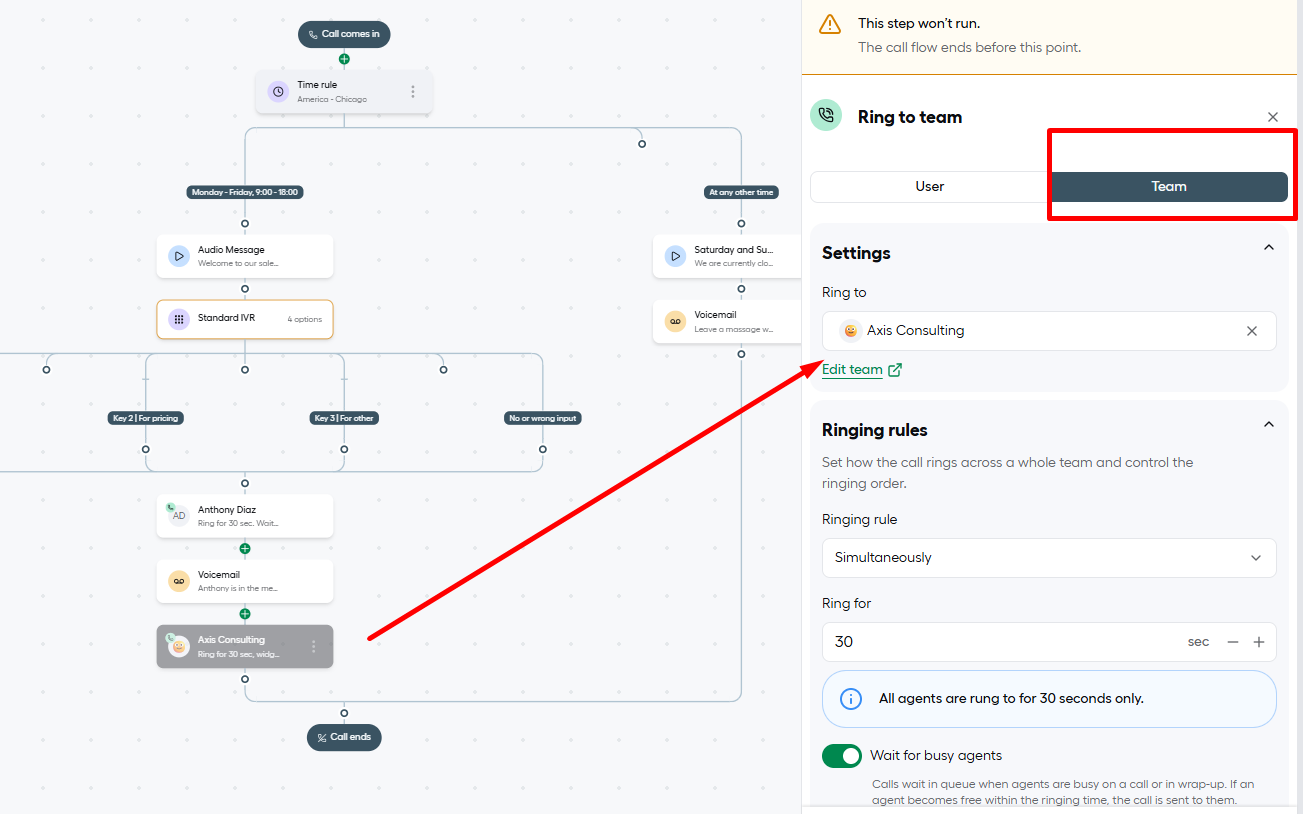
  2. Switch to the Team tab and choose the backup team. The sample uses Axis Consulting.
  3. Set Ringing rule to Simultaneously, so the whole team rings together instead of one by one.
  4. Keep Ring for at 30 seconds and leave Wait for busy agents switched on.
aircall call routing smatflow team call routing setup

The yellow banner in this screenshot reads This step won’t run. In the original sample the team sat under the voicemail, and since voicemail ends a call, Aircall skipped everything below it. Moving the team above the voicemail is what makes the safety net actually catch anything.

6. Capture the Lead in Voicemail

If neither the rep nor the team answers, a voicemail is the last chance to collect the prospect’s details before they hang up.

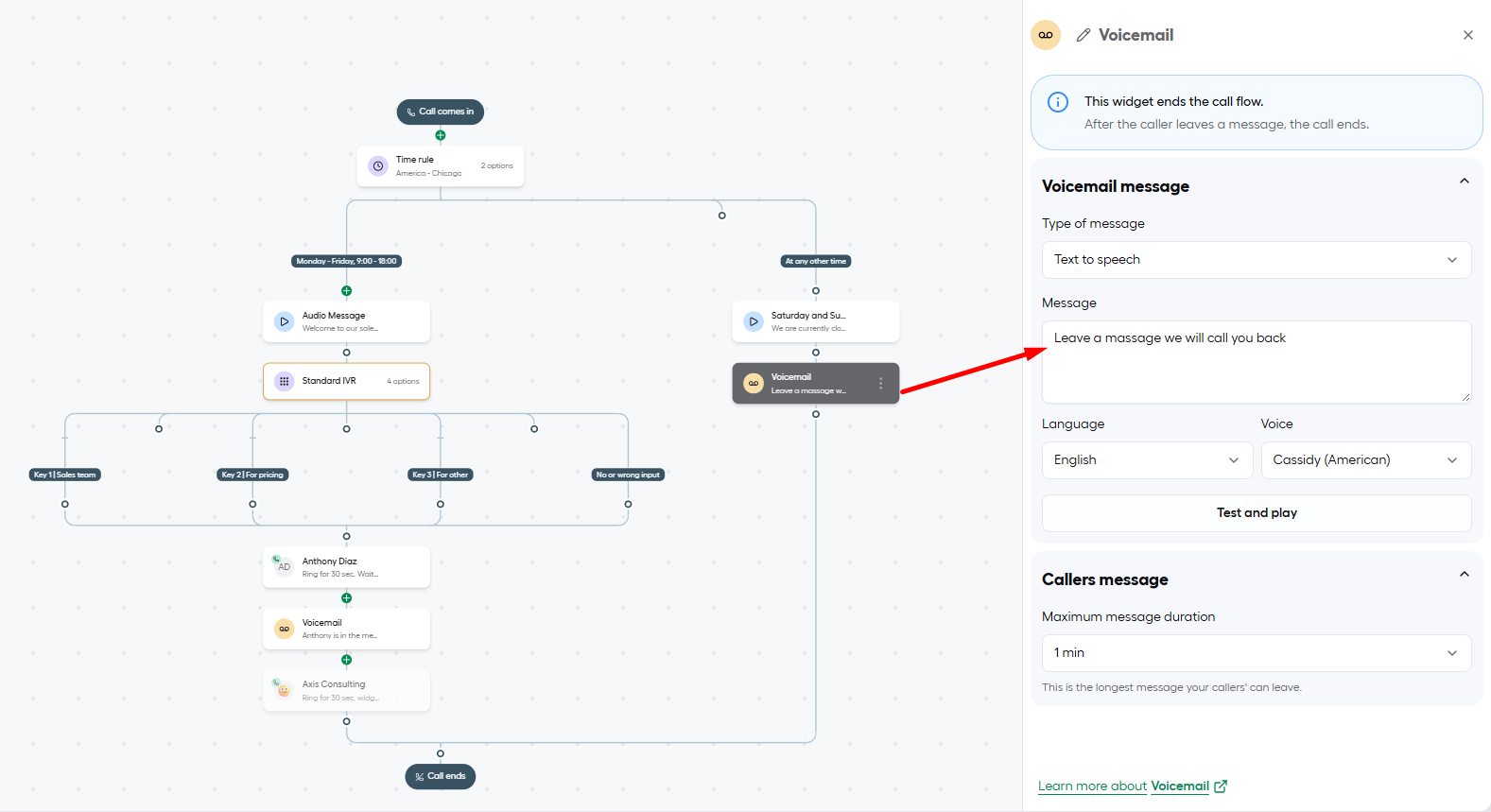
  1. Add a Voicemail widget beneath the backup team.
  2. Choose Text to speech and type the message.
  3. Pick the Language and Voice, then Test and play.
  4. Under Callers message, set the longest message a caller can leave.

The sample allows 1 minute; “Our sales team is with other customers right now. Leave your name, number and what you need, and we will call you back today.“

aircall call routing smatflow team call routing setup

The sample voicemail tells callers their call is being passed to another team. Since nothing runs after a voicemail, that never happens. Promise a call back instead, and give it a timeframe your team can keep.
Decide now who owns the call backs. Voicemails that belong to everyone tend to belong to no one, so name one rep or a rota for each day.

7. Handle Calls Outside Sales Hours

Calls that arrive in the evening or at the weekend follow the At any other time branch, which needs its own short message and voicemail.

  1. Add an Audio Message widget to the At any other time branch.
  2. Give it a name that says when it plays. The sample calls it Saturday and Sunday hour.
  3. Choose Text to speech or upload a recording.
  4. Type the closed message, set the Language and Voice, and Test and play.
  5. Add a Voicemail widget underneath so out of hours callers can still leave their details.
aircall call routing smatflow voicemail setup

Say the hours in the message if they are simple, for example weekdays 9 to 6. A caller who knows when to try again is more likely to call back than to move on.

8. Run Your Test Calls

Check every route from a phone outside the team before the number goes on your website or ads.

  • During sales hours, press 1 and confirm the rep’s phone rings
  • Press 2, then 3, and confirm each reaches the intended person
  • Press 9 or wait in silence and confirm the menu repeats, then the call still routes
  • Leave the rep’s phone unanswered and confirm the backup team rings next
  • Leave the team unanswered and confirm the caller reaches voicemail
  • Call after hours and confirm the closed message plays before voicemail
  • Check the canvas for any widget shown in grey

When every route behaves, publish the flow and place one more live call to the published number before you start sending traffic to it.

aircall call routing smatflow voicemail setup

Turn every inbound call into a sales conversation

Missed sales calls rarely show up as an error. They show up as quieter months and leads that went to a competitor.

We build Aircall Smartflows around how your sales team actually works, with routing, backups and after hours handling tested end to end.

Tell us how your team sells and we will map the flow that fits.

Frequently Asked Questions

Not once you have more than one rep. Pricing callers are usually close to a decision, so route Key 2 to someone who can quote and negotiate on the spot.

Add a second time slot to the weekday branch in the time rule. Calls during the gap follow the At any other time branch and hear your closed message instead of ringing an empty desk.

Yes. Aircall reports the IVR option on each call, which shows whether most callers want pricing, sales or something else. Use it to decide which key deserves its own team. To push that data into your CRM, see CRM integration.

The same working day at the latest. A prospect who leaves a message is often calling other suppliers too, and the first one to call back usually gets the meeting.

Yes. Open the Standard IVR, use Add new branch, update the prompt wording and connect the new branch to a rep. Test the new key and the old ones afterwards, since a changed prompt can confuse callers used to the old order.

Work with an Aircall Consultant to Route Smarter, Grow Faster

Get in touch for a quick and easy answer.

This field is hidden when viewing the form

Work with an Aircall Consultant to Route Smarter, Grow Faster

Get in touch for a quick and easy answer.

This field is hidden when viewing the form